> ## Documentation Index
> Fetch the complete documentation index at: https://docs.conversion.ai/llms.txt
> Use this file to discover all available pages before exploring further.
# Creating an Audience
> Create audiences from filter criteria, a blank list, or a CSV import in Conversion.
There are three ways to create a new audience in Conversion. Click the **New audience** button in the top right to get started, or use **Import from CSV** to create a static audience from a file.
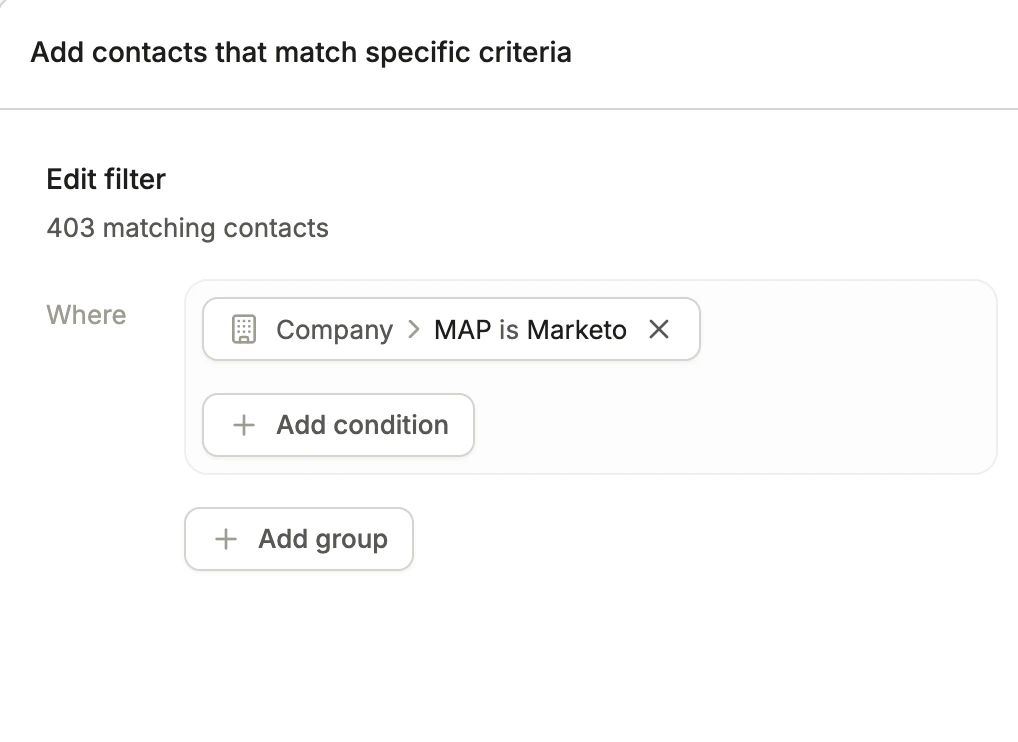
## Contacts that match specific criteria
Use this option to create an audience based on filter conditions. If the audience is **dynamic**, Conversion will automatically include any contacts that match your defined criteria, and keep the audience up to date as contact data changes. If the audience is **static**, changes to the contact criteria will not lead to changes in the audience.
 ## Start with an empty audience
Use this option to create a blank **static audience**. Once created, you can manually add contacts or import them via CSV.
This is a good starting point when you want to build a curated list without defining filter criteria upfront.
## Importing from CSV
You can create a static audience by importing a CSV file. Click **Import from CSV** from the audiences list.
During the import, you can map each column in your CSV to the corresponding contact or company field in Conversion. If a column isn't relevant, you can skip it and it won't be imported.
CSV imports create or update contacts based on email address. Make sure your CSV includes an email column so contacts can be correctly identified or created.
## Start with an empty audience
Use this option to create a blank **static audience**. Once created, you can manually add contacts or import them via CSV.
This is a good starting point when you want to build a curated list without defining filter criteria upfront.
## Importing from CSV
You can create a static audience by importing a CSV file. Click **Import from CSV** from the audiences list.
During the import, you can map each column in your CSV to the corresponding contact or company field in Conversion. If a column isn't relevant, you can skip it and it won't be imported.
CSV imports create or update contacts based on email address. Make sure your CSV includes an email column so contacts can be correctly identified or created.