> ## Documentation Index
> Fetch the complete documentation index at: https://docs.conversion.ai/llms.txt
> Use this file to discover all available pages before exploring further.
# Managing an Audience
> Add, remove, search, and export contacts within an audience in Conversion.
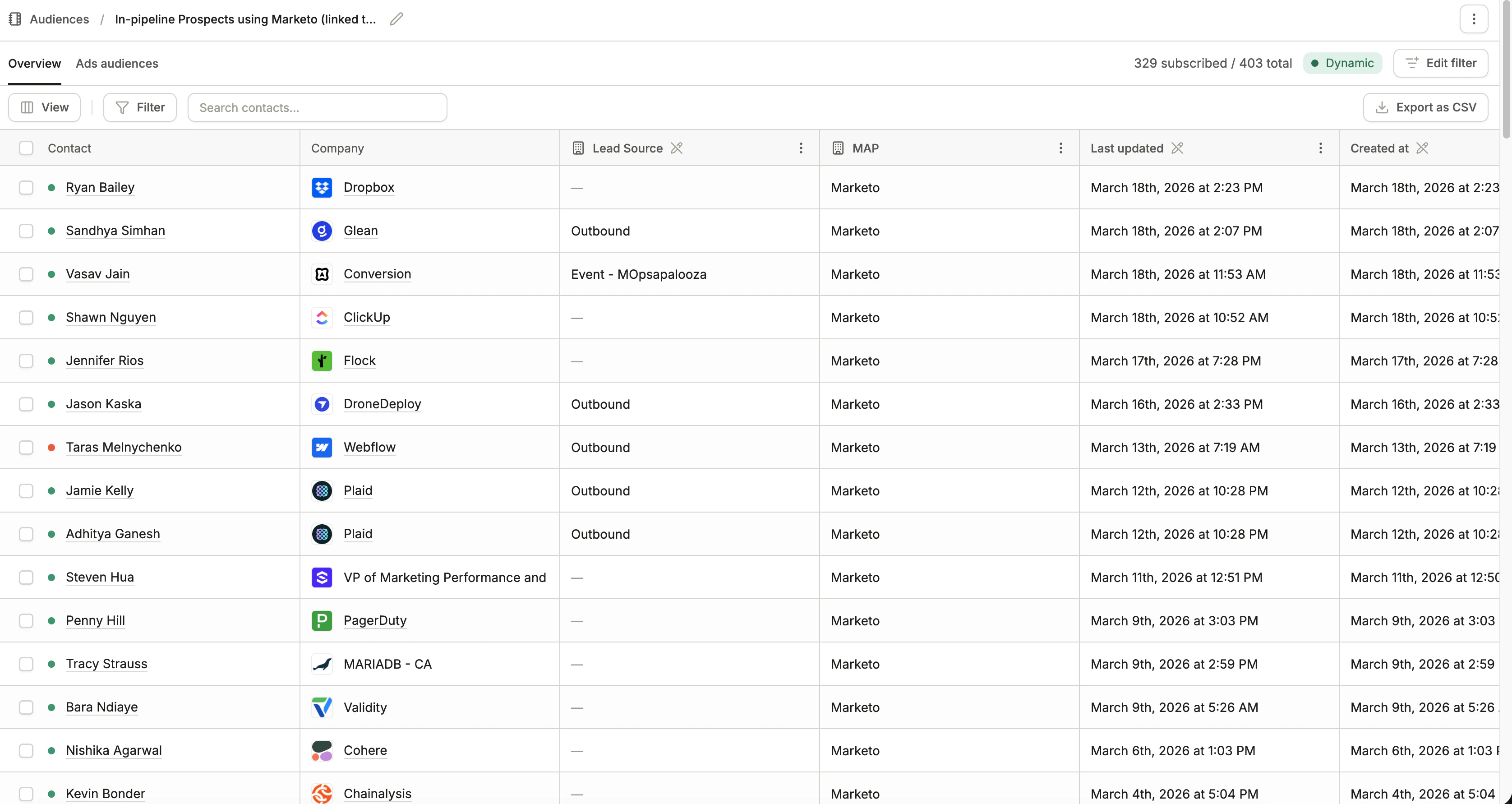
Once an audience has been created, you can manage its membership and update how contacts are filtered or added.
 ## Adding and removing contacts
How you manage contacts in an audience depends on its type.
For dynamic audiences, membership is controlled entirely by your filter criteria. To change which contacts are included, click **Edit filter** in the top right to update the conditions.
Conversion will automatically re-evaluate the audience and add or remove contacts based on the updated filter.
For static audiences, you manage contacts manually. Click **Add contacts** in the top right and choose one of the following:
| Option | Description |
| ------------------- | ------------------------------------------------------------------------ |
| **Select contacts** | Search for and add individual contacts from your Conversion contact list |
| **Import from CSV** | Upload a CSV file to add contacts in bulk |
To remove contacts, select them from the audience table and delete them from the audience.
***
## Importing contacts via CSV
When adding contacts to a static audience via CSV import, you can map each column in your file to a contact or company field in Conversion.
Any columns you don't want to import can be skipped. They won't affect existing contact data.
If a contact with the submitted email address already exists, their record will be updated with any mapped field values from the CSV.
***
## Searching and filtering within an audience
Within any audience, you can search for specific contacts or narrow the view using filters.
Use the **Filter** button to apply conditions based on contact or company fields.
Filtering within an audience is useful for spot-checking which contacts match a particular criteria before exporting or taking action on them.
***
## Exporting an audience
To export the contacts in an audience, click **Export as CSV** in the top right. This downloads a CSV of all contacts currently in the audience view.
## Adding and removing contacts
How you manage contacts in an audience depends on its type.
For dynamic audiences, membership is controlled entirely by your filter criteria. To change which contacts are included, click **Edit filter** in the top right to update the conditions.
Conversion will automatically re-evaluate the audience and add or remove contacts based on the updated filter.
For static audiences, you manage contacts manually. Click **Add contacts** in the top right and choose one of the following:
| Option | Description |
| ------------------- | ------------------------------------------------------------------------ |
| **Select contacts** | Search for and add individual contacts from your Conversion contact list |
| **Import from CSV** | Upload a CSV file to add contacts in bulk |
To remove contacts, select them from the audience table and delete them from the audience.
***
## Importing contacts via CSV
When adding contacts to a static audience via CSV import, you can map each column in your file to a contact or company field in Conversion.
Any columns you don't want to import can be skipped. They won't affect existing contact data.
If a contact with the submitted email address already exists, their record will be updated with any mapped field values from the CSV.
***
## Searching and filtering within an audience
Within any audience, you can search for specific contacts or narrow the view using filters.
Use the **Filter** button to apply conditions based on contact or company fields.
Filtering within an audience is useful for spot-checking which contacts match a particular criteria before exporting or taking action on them.
***
## Exporting an audience
To export the contacts in an audience, click **Export as CSV** in the top right. This downloads a CSV of all contacts currently in the audience view.