> ## Documentation Index
> Fetch the complete documentation index at: https://docs.conversion.ai/llms.txt
> Use this file to discover all available pages before exploring further.
# Advanced Form Settings
> Advanced form settings for accessing and updating data on Conversion embedded forms
The **Advanced** tab of the form settings page contains JavaScript snippets for programmatically updating and retrieving data from your embedded Conversion form.
These settings only apply to embedded Conversion forms.
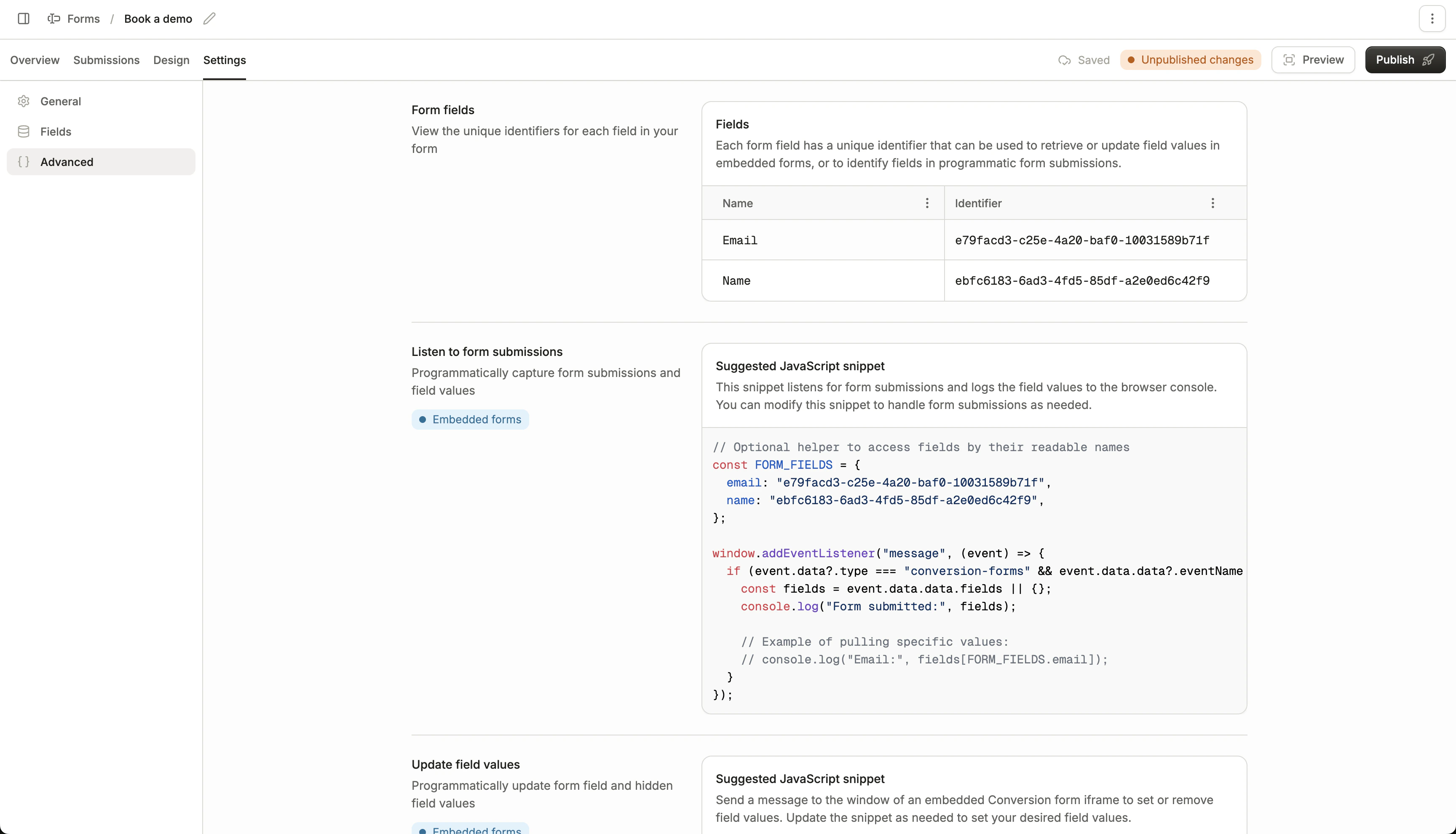 ## Form fields
This table maps each form field (both displayed and hidden fields) to its field ID, which is used to identify it programmatically.
## Listen to form submissions
The following JavaScript snippet shows how to retrieve submitted form field values from an embedded Conversion form.
```javascript theme={null}
// Optional helper to access fields by their readable names
const FORM_FIELDS = {
email: "",
name: "",
};
window.addEventListener("message", (event) => {
if (event.data?.type === "conversion-forms" && event.data.data?.eventName === "submitted") {
const fields = event.data.data.fields || {};
console.log("Form submitted:", fields);
// Example of pulling specific values:
// console.log("Email:", fields[FORM_FIELDS.email]);
}
});
```
Replace `` with your form field ID's
Steps to retrieve fields programmatically:
Define a helper object to store the field IDs for each field. These IDs are used to reference field data in your code.
Add an event listener for the `submitted` event, which fires when the form has been submitted.
Extract values from the `fields` object, which maps each field ID to its submitted value.
## Update field values
The following JavaScript snippet shows how to programmatically update field values on an embedded Conversion form.
```javascript theme={null}
// Optional helper to access fields by their readable names
const FORM_FIELDS = {
email: "",
name: "",
};
// Ensure the form is ready to receive messages
window.addEventListener("message", (event) => {
// Only handle messages from Conversion Forms
if (event.data?.type !== "conversion-forms-ping" || event.origin !== "https://forms.conversion.ai") return;
document.getElementById()?.contentWindow.postMessage({
type: "conversion-forms",
data: {
eventName: "set-values",
fields: {
// Set a value
// [FORM_FIELDS.email]: "user@example.com",
// Remove a value
// [FORM_FIELDS.name]: null
}
}
}, "https://forms.conversion.ai");
});
```
Replace `` with your form ID, and ` `with your form field ID's
Steps to set field values programmatically:
Define a helper object to store the field IDs for each field. These IDs are used to target specific fields when setting values.
Add an event listener for the `"conversion-forms-ping"` event, which fires when the form is ready to receive messages.
Send a message to the form iframe with a `fields` object mapping each field ID to the value you want to set.
To clear a field, set its value to `null`
## Form fields
This table maps each form field (both displayed and hidden fields) to its field ID, which is used to identify it programmatically.
## Listen to form submissions
The following JavaScript snippet shows how to retrieve submitted form field values from an embedded Conversion form.
```javascript theme={null}
// Optional helper to access fields by their readable names
const FORM_FIELDS = {
email: "",
name: "",
};
window.addEventListener("message", (event) => {
if (event.data?.type === "conversion-forms" && event.data.data?.eventName === "submitted") {
const fields = event.data.data.fields || {};
console.log("Form submitted:", fields);
// Example of pulling specific values:
// console.log("Email:", fields[FORM_FIELDS.email]);
}
});
```
Replace `` with your form field ID's
Steps to retrieve fields programmatically:
Define a helper object to store the field IDs for each field. These IDs are used to reference field data in your code.
Add an event listener for the `submitted` event, which fires when the form has been submitted.
Extract values from the `fields` object, which maps each field ID to its submitted value.
## Update field values
The following JavaScript snippet shows how to programmatically update field values on an embedded Conversion form.
```javascript theme={null}
// Optional helper to access fields by their readable names
const FORM_FIELDS = {
email: "",
name: "",
};
// Ensure the form is ready to receive messages
window.addEventListener("message", (event) => {
// Only handle messages from Conversion Forms
if (event.data?.type !== "conversion-forms-ping" || event.origin !== "https://forms.conversion.ai") return;
document.getElementById()?.contentWindow.postMessage({
type: "conversion-forms",
data: {
eventName: "set-values",
fields: {
// Set a value
// [FORM_FIELDS.email]: "user@example.com",
// Remove a value
// [FORM_FIELDS.name]: null
}
}
}, "https://forms.conversion.ai");
});
```
Replace `` with your form ID, and ` `with your form field ID's
Steps to set field values programmatically:
Define a helper object to store the field IDs for each field. These IDs are used to target specific fields when setting values.
Add an event listener for the `"conversion-forms-ping"` event, which fires when the form is ready to receive messages.
Send a message to the form iframe with a `fields` object mapping each field ID to the value you want to set.
To clear a field, set its value to `null`