> ## Documentation Index
> Fetch the complete documentation index at: https://docs.conversion.ai/llms.txt
> Use this file to discover all available pages before exploring further.
# Form Field Settings
> Configure field mappings for your form
Configure field mappings for your form in the **Fields** tab of your form settings page.
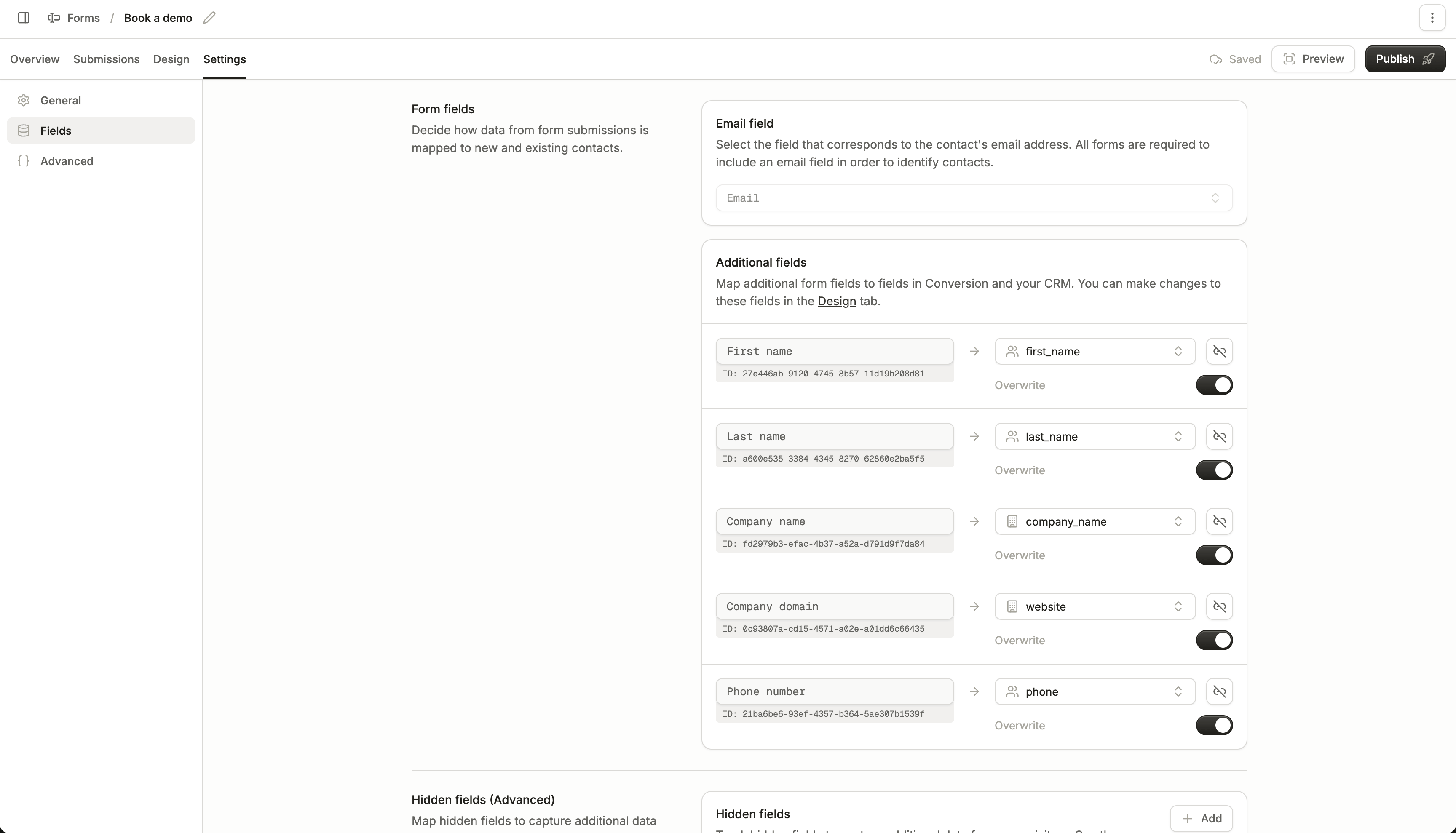 For each input element in your form, you can choose which contact or company field it maps to, and whether to overwrite the field's existing value (should it exist).
Mappings can also be configured per input element in the [forms builder](/product-docs/forms/dashboard/form-builder).
## Hidden fields
Hidden fields let you pass additional information alongside a form submission, such as UTM parameters, traffic source, or other metadata you've collected about the user.
You can add hidden fields to your form and map them to any contact or company field.
For each input element in your form, you can choose which contact or company field it maps to, and whether to overwrite the field's existing value (should it exist).
Mappings can also be configured per input element in the [forms builder](/product-docs/forms/dashboard/form-builder).
## Hidden fields
Hidden fields let you pass additional information alongside a form submission, such as UTM parameters, traffic source, or other metadata you've collected about the user.
You can add hidden fields to your form and map them to any contact or company field.