> ## Documentation Index
> Fetch the complete documentation index at: https://docs.conversion.ai/llms.txt
> Use this file to discover all available pages before exploring further.

# Forms Overview

> An overview of how website forms work in Conversion

Forms are a vital source for capturing new leads and tracking activity in Conversion. This guide walks through the different types of form connections Conversion supports.
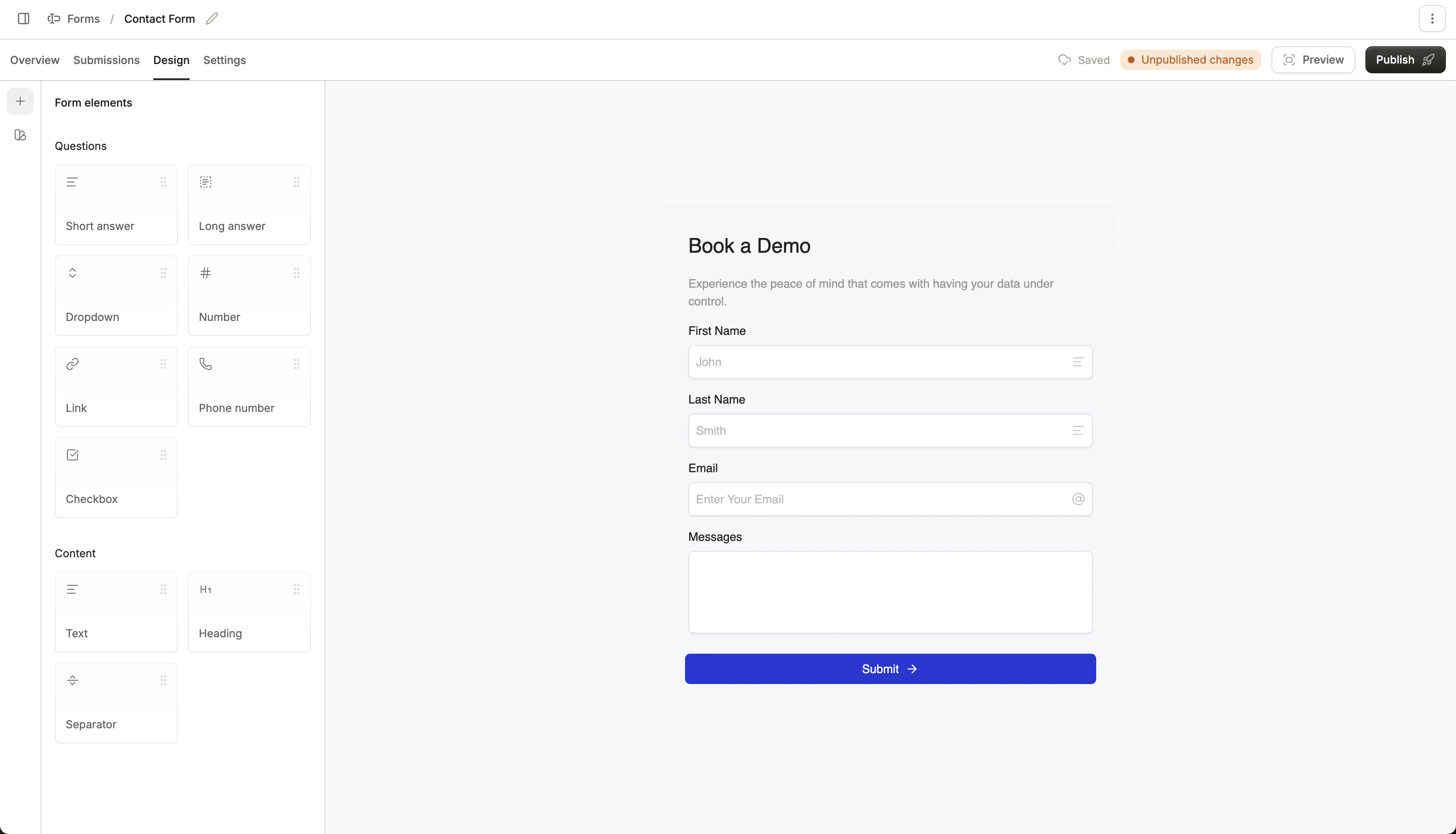
<Frame caption="Design custom lead capture forms in Conversion">
  <img src="https://mintcdn.com/conversion/Kf-kvP6gmktphLm9/images/Screenshot2026-02-18at2.31.01PM.png?fit=max&auto=format&n=Kf-kvP6gmktphLm9&q=85&s=e9b570e9a34270a0bb1bcaa662c9b44b" alt="Screenshot 2026 02 18 At 2 31 01 PM" width="3456" height="1980" data-path="images/Screenshot2026-02-18at2.31.01PM.png" />
</Frame>

## Types of forms

There are three types of forms Conversion supports:

### Embedded forms

Embedded forms are forms you design in Conversion using the [forms builder](/product-docs/forms/dashboard/form-builder), that are embedded onto your website page using an iframe script.

These are perfect for forms you want to own and design in Conversion, and are easy to set up.

### Forms SDK

Use Conversion's JavaScript Forms SDK to record form submissions programmatically on your site. Read more about the [Forms SDK](/product-docs/forms/forms-sdk).

Using the Forms SDK is best if you have a custom form built on your website that you wish to send data through to Conversion.

### External forms

Conversion can listen to external or third-party forms and read form submissions from them.

These external forms must be JavaScript forms (`<form>`), use input fields (`<input>`), and call the submit event.

The form is identified via the `id`, falling back to `name` if it doesn't exist. The field names that appear in the tracked form submissions are the names of the `<input>` elements.

<Info>
  If an email address is not passed through a form, it will not be mapped to or create a contact.
</Info>

<Warning>
  We usually recommend against relying on external forms if accuracy is paramount, as external forms can behave in unexpected ways that can lead to double submissions and missed captures.
</Warning>

***

## Creating a new form

To create a new form, click the **New form** button in the top right.

You can choose from these two options:

<Tabs>
  <Tab title="Create a new form">
    <Info>
      This can either be used as an embedded form, or a form that listens to submissions programmatically through the Forms SDK.
    </Info>

    To create a Conversion form, simply enter a form name.

    To install an embedded form onto your website, add the given JavaScript iframe snippet to your webpage where you want the form to appear:

    ```javascript theme={null}
        {/*  Add the Conversion Forms SDK script to your website  */}
        <script src="https://forms.conversion.ai/script.js"></script>
        
        <iframe
          id="<YOUR_FORM_ID>"
          src="https://forms.conversion.ai/<YOUR_FORM_ID>"
        ></iframe>
    ```

    <Tip>
      Replace `<YOUR_FORM_ID>` with your form ID.
    </Tip>

    Then, [design your form](/product-docs/forms/dashboard/form-builder) by dragging input elements into your form. Click **Publish** once you're ready to publish your form!

    Read more about how to send submissions programmatically through the [Forms SDK](/product-docs/forms/forms-sdk).
  </Tab>

  <Tab title="Track an external form">
    To link an external form, ensure the page includes the Conversion Forms SDK script:

    ```javascript theme={null}
        {/*  Add the Conversion Forms SDK script to your website  */}
        <script src="https://forms.conversion.ai/script.js"></script>
    ```

    Then, Conversion will listen for form submissions through untracked external forms. You can then choose to **track** an external form, meaning it will act as a Conversion form and read its submission data.

    <Frame>
      <img src="https://mintcdn.com/conversion/CHemlaZxARUi4qw2/images/Screenshot2026-02-19at11.47.14PM.png?fit=max&auto=format&n=CHemlaZxARUi4qw2&q=85&s=f077c9dd491cd736ff77885fa21a65ae" alt="Screenshot 2026 02 19 At 11 47 14 PM" width="1932" height="1160" data-path="images/Screenshot2026-02-19at11.47.14PM.png" />
    </Frame>

    <Note>
      Before tracking an external form, you must select a field in the form submission to map to the email field.
    </Note>
  </Tab>
</Tabs>

***

## Frequently Asked Questions

<AccordionGroup>
  <Accordion title="Why are my form submissions not going through?">
    Here are common reasons your form submissions may not be going through:

    1. The form must first be **Published** before it can collect form submissions.
    2. Conversion only collects submissions from forms located on website pages with your **business's registered base domain**.
       1. To test submissions on another domain, toggle the **Allow any origin for testing** setting under the form's [General Settings](/product-docs/forms/dashboard/settings/general).
  </Accordion>

  <Accordion title="Why isn't my embedded Conversion form displaying on my website?">
    Conversion embedded forms only display on website pages hosted on your business's registered base domain.

    To allow the form to be viewed and submitted on other domains for testing, toggle the **Allow any origin for testing** setting under the form's [General Settings](/product-docs/forms/dashboard/settings/general).
  </Accordion>

  <Accordion title="Why are two external forms on different pages being routed to one Conversion form?">
    Conversion identifies external forms via the HTML form element `id`, falling back to `name` if it doesn't exist. Thus, if a form with the same `id` exists on two different pages, their submissions will be routed to one Conversion form.
  </Accordion>
</AccordionGroup>
