> ## Documentation Index
> Fetch the complete documentation index at: https://docs.conversion.ai/llms.txt
> Use this file to discover all available pages before exploring further.
# Company Record
> View and edit a company's details, associated contacts, opportunities, and activity history.
When you click on a company in the companies list, a sidebar opens from the right side of the screen. This is the **compact view** of the company record. You can also expand it into a **full-screen view** for more space.
***
## Compact view
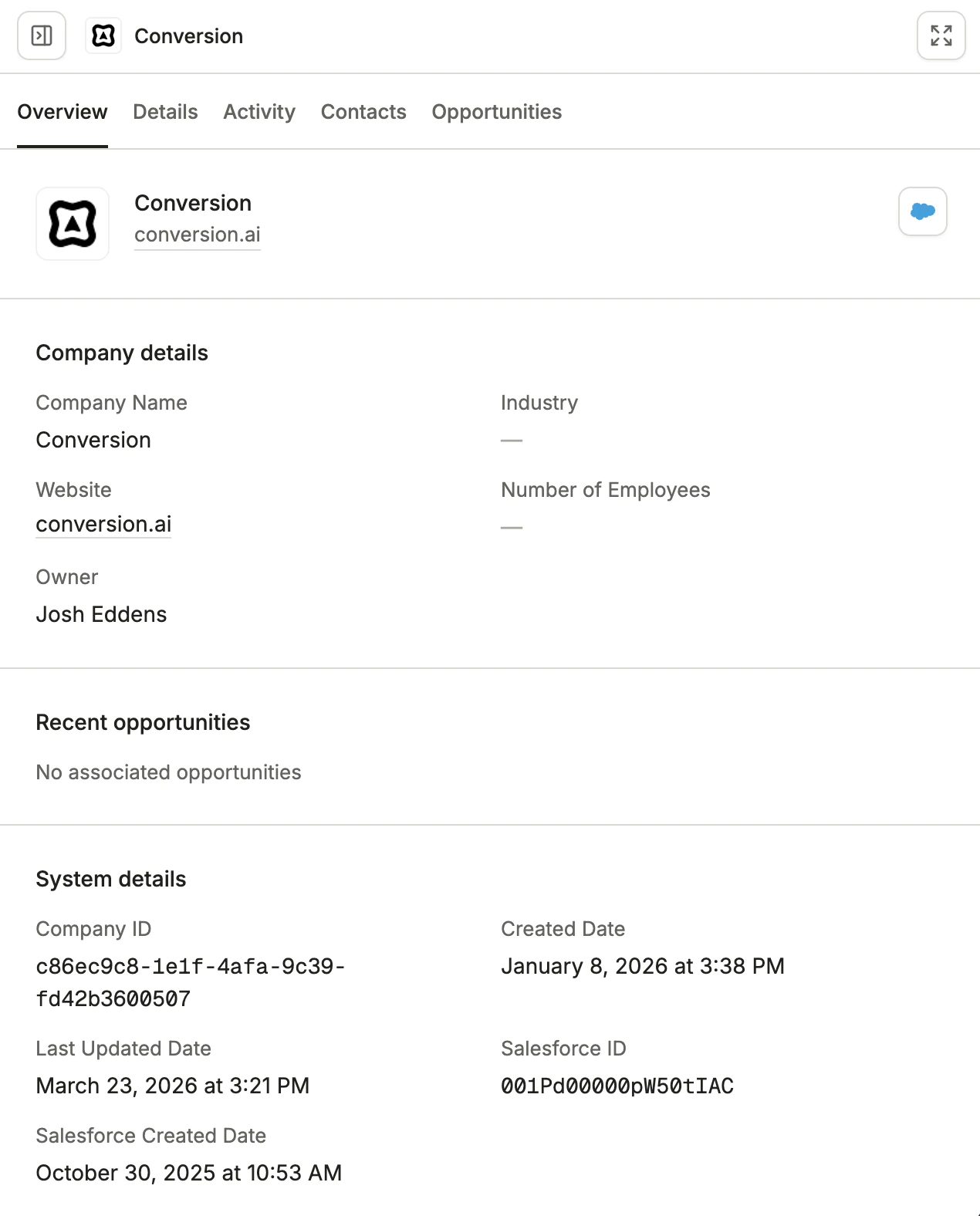
The compact view is a sidebar that opens on the right side of the companies list page when you click on a company.
 ### Header
The top of the sidebar displays the company's key identifying information:
* **Company name**
* **Company logo**
* **Website**
The header also includes a **Salesforce icon**. Click the Salesforce cloud icon to open the account record directly in Salesforce. This navigates you to the exact record in your Salesforce instance.
### Overview tab
The Overview tab provides a summary of the company's field values and related records, organized into the following sections:
**Company details**
Displays the company's core profile information:
* Company Name
* Industry
* Website
* Number of Employees
* Owner
**Recent opportunities**
Shows a summary of the most recent opportunities associated with this company. Each opportunity card displays:
* Opportunity name with a **View** link to open the full opportunity record
* Stage (e.g., "Discovery / Qualification")
* Amount
* Close date
* Probability
**System details**
Displays system-managed metadata about the company record:
* Company ID: The unique identifier for the company in Conversion.
* Created Date: When the company record was created in Conversion.
* Last Updated Date: When the company record was last modified.
* Salesforce ID: The corresponding account record ID in Salesforce.
* Salesforce Created Date: When the account was created in Salesforce.
### Details tab
The Details tab shows a complete breakdown of every field value on the company, organized by field category.
The fields are organized into the following categories:
| Category | Description |
| :------------------------ | :-------------------------------------------------------------------------------- |
| **Company Details** | Standard company fields such as name, industry, website, and number of employees. |
| **Custom Company Fields** | Custom fields you have created for the company object in your workspace. |
| **Company System Fields** | System-managed fields such as company ID, Salesforce ID, and sync metadata |
### Activity tab
The Activity tab shows a chronological log of all activity associated with the company. This is an **aggregate view** that combines the activity of every contact that belongs to this company into a single timeline.
Each activity entry shows the **contact name** alongside the action taken. For example:
* "Vasav Jain entered Mark Subscribed - Meeting Engaged"
* "Vasav Jain exited Mark Subscribed - Meeting Engaged"
This gives you a complete picture of engagement across the entire organization, not just a single contact.
You can:
* **Search** through activity entries using the search bar at the top.
* **Filter by time range** using preset ranges (Today, Yesterday, This week, Last week, Last 7 days, Last 30 days, This month, Last month, Last 3 months, Last 6 months) or a custom date range with specific From and To times. Click **Apply** to filter, or **Clear** to reset.
* **Filter by activity type** to narrow the log to specific categories: Emails, Form submissions, Page visits, Workflows, or Custom events.
The activity types and their subtypes are the same as on contact records. See [Activity types](/product-docs/records/contacts/activity#activity-type-reference) for the full reference.
### Contacts tab
The Contacts tab lists all contacts that belong to this company.
Each row shows:
* **Contact**: The contact's name and an indicator of their subscription status.
* **Company**: The company the contact is associated with.
* **Last updated**: When the contact record was last modified.
### Opportunities tab
The Opportunities tab lists all opportunities associated with this company.
Each row shows:
* **Opportunity**: The name of the opportunity.
* **Created at**: When the opportunity was created, sorted by most recent first by default.
***
## Full-screen view
Click the **expand button** (double-arrow icon) in the top-right corner of the compact sidebar to open the company in full-screen view.
### Header
The top of the sidebar displays the company's key identifying information:
* **Company name**
* **Company logo**
* **Website**
The header also includes a **Salesforce icon**. Click the Salesforce cloud icon to open the account record directly in Salesforce. This navigates you to the exact record in your Salesforce instance.
### Overview tab
The Overview tab provides a summary of the company's field values and related records, organized into the following sections:
**Company details**
Displays the company's core profile information:
* Company Name
* Industry
* Website
* Number of Employees
* Owner
**Recent opportunities**
Shows a summary of the most recent opportunities associated with this company. Each opportunity card displays:
* Opportunity name with a **View** link to open the full opportunity record
* Stage (e.g., "Discovery / Qualification")
* Amount
* Close date
* Probability
**System details**
Displays system-managed metadata about the company record:
* Company ID: The unique identifier for the company in Conversion.
* Created Date: When the company record was created in Conversion.
* Last Updated Date: When the company record was last modified.
* Salesforce ID: The corresponding account record ID in Salesforce.
* Salesforce Created Date: When the account was created in Salesforce.
### Details tab
The Details tab shows a complete breakdown of every field value on the company, organized by field category.
The fields are organized into the following categories:
| Category | Description |
| :------------------------ | :-------------------------------------------------------------------------------- |
| **Company Details** | Standard company fields such as name, industry, website, and number of employees. |
| **Custom Company Fields** | Custom fields you have created for the company object in your workspace. |
| **Company System Fields** | System-managed fields such as company ID, Salesforce ID, and sync metadata |
### Activity tab
The Activity tab shows a chronological log of all activity associated with the company. This is an **aggregate view** that combines the activity of every contact that belongs to this company into a single timeline.
Each activity entry shows the **contact name** alongside the action taken. For example:
* "Vasav Jain entered Mark Subscribed - Meeting Engaged"
* "Vasav Jain exited Mark Subscribed - Meeting Engaged"
This gives you a complete picture of engagement across the entire organization, not just a single contact.
You can:
* **Search** through activity entries using the search bar at the top.
* **Filter by time range** using preset ranges (Today, Yesterday, This week, Last week, Last 7 days, Last 30 days, This month, Last month, Last 3 months, Last 6 months) or a custom date range with specific From and To times. Click **Apply** to filter, or **Clear** to reset.
* **Filter by activity type** to narrow the log to specific categories: Emails, Form submissions, Page visits, Workflows, or Custom events.
The activity types and their subtypes are the same as on contact records. See [Activity types](/product-docs/records/contacts/activity#activity-type-reference) for the full reference.
### Contacts tab
The Contacts tab lists all contacts that belong to this company.
Each row shows:
* **Contact**: The contact's name and an indicator of their subscription status.
* **Company**: The company the contact is associated with.
* **Last updated**: When the contact record was last modified.
### Opportunities tab
The Opportunities tab lists all opportunities associated with this company.
Each row shows:
* **Opportunity**: The name of the opportunity.
* **Created at**: When the opportunity was created, sorted by most recent first by default.
***
## Full-screen view
Click the **expand button** (double-arrow icon) in the top-right corner of the compact sidebar to open the company in full-screen view.
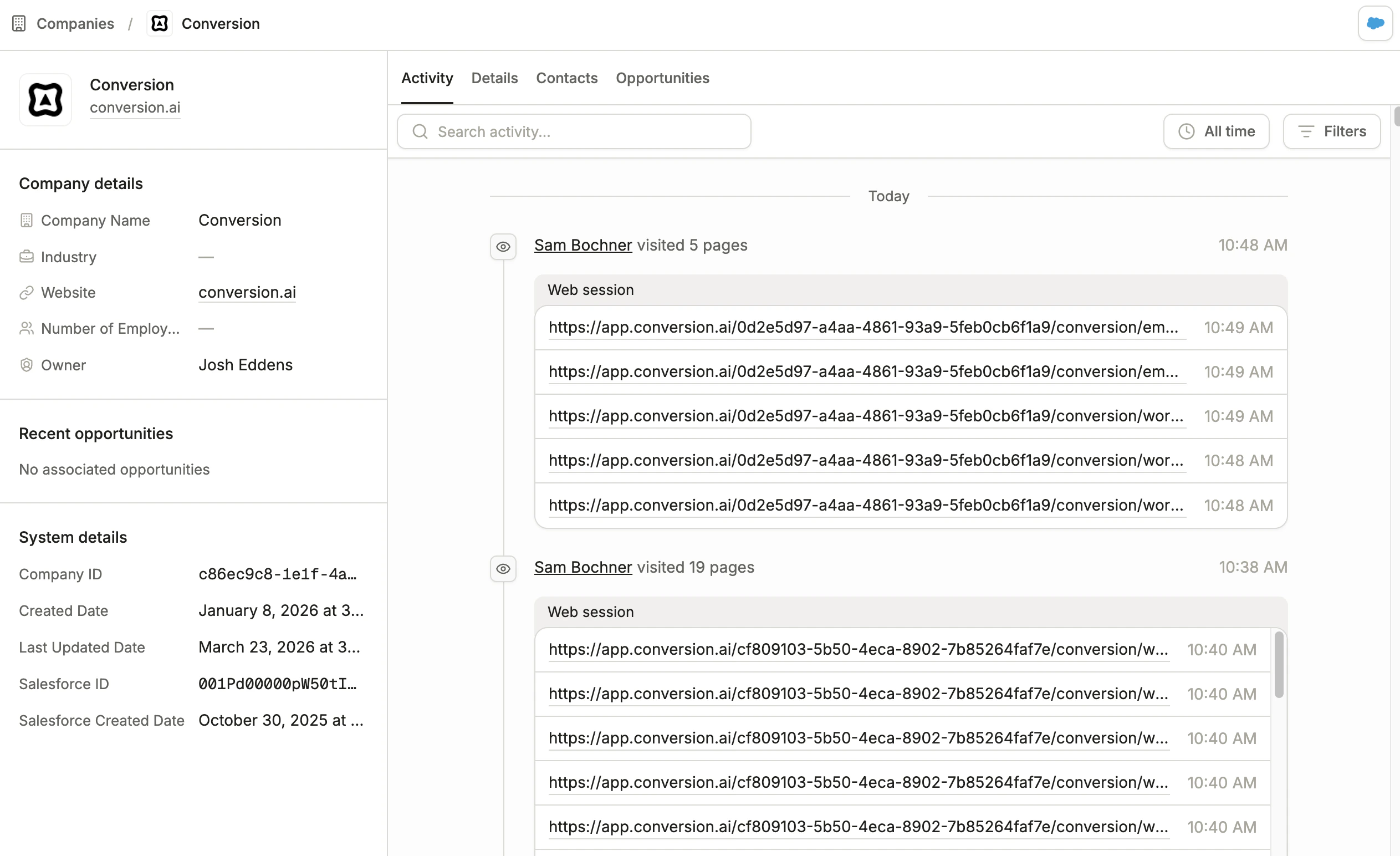 The full-screen view provides the same information and functionality as the compact view, just with a more spacious layout for reviewing activity across all contacts, browsing associated opportunities, and managing field values.
To navigate back to the companies list, click the **Companies** breadcrumb at the top of the page.
***
## Editing a company
You can edit a company directly from both the compact view and the full-screen view. Click on any field value to modify it inline. The field becomes editable, and your changes are saved when you click away or press Enter.
This applies to fields in the Overview tab, the Details tab, and the left sidebar of the full-screen view.
The full-screen view provides the same information and functionality as the compact view, just with a more spacious layout for reviewing activity across all contacts, browsing associated opportunities, and managing field values.
To navigate back to the companies list, click the **Companies** breadcrumb at the top of the page.
***
## Editing a company
You can edit a company directly from both the compact view and the full-screen view. Click on any field value to modify it inline. The field becomes editable, and your changes are saved when you click away or press Enter.
This applies to fields in the Overview tab, the Details tab, and the left sidebar of the full-screen view.