> ## Documentation Index
> Fetch the complete documentation index at: https://docs.conversion.ai/llms.txt
> Use this file to discover all available pages before exploring further.
# Admin User Integration
> Connect your Salesforce organization to Conversion using a Salesforce administrator user.
This guide walks you through connecting Conversion to Salesforce using an admin user. The setup process takes about 5 - 10 minutes.
## Prerequisites
Before you begin, make sure you have:
* **Salesforce Edition**: Enterprise, Unlimited, or Developer Edition (Professional Edition requires an API access add-on)
* **Salesforce Permissions**: System Administrator access
* **Conversion Account**: Admin access to your Conversion workspace
***
### Update the User
1. Navigate to **Setup** **Users** **Users**
2. Click on the admin user you'll be integrating with
3. **Check the Marketing User box** (to enable Campaign syncing)
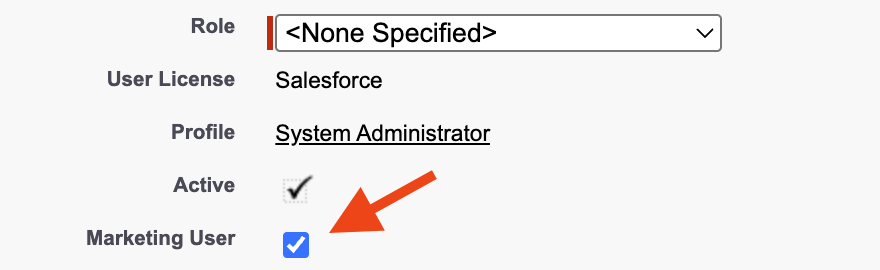 4. Click **Save**
***
## Install the Salesforce Package
Conversion uses a managed package to enable secure communication with your Salesforce organization. This package must be installed before you can connect.
The person installing the package needs the **Download AppExchange Packages** permission in Salesforce. This is typically enabled for system administrators.
Click the link below to open the Salesforce package installer:
Opens the package installation page for a production Salesforce instance
Opens the package installation page for a sandbox Salesforce instance
You'll see a page asking which users should have access to the package:
4. Click **Save**
***
## Install the Salesforce Package
Conversion uses a managed package to enable secure communication with your Salesforce organization. This package must be installed before you can connect.
The person installing the package needs the **Download AppExchange Packages** permission in Salesforce. This is typically enabled for system administrators.
Click the link below to open the Salesforce package installer:
Opens the package installation page for a production Salesforce instance
Opens the package installation page for a sandbox Salesforce instance
You'll see a page asking which users should have access to the package:
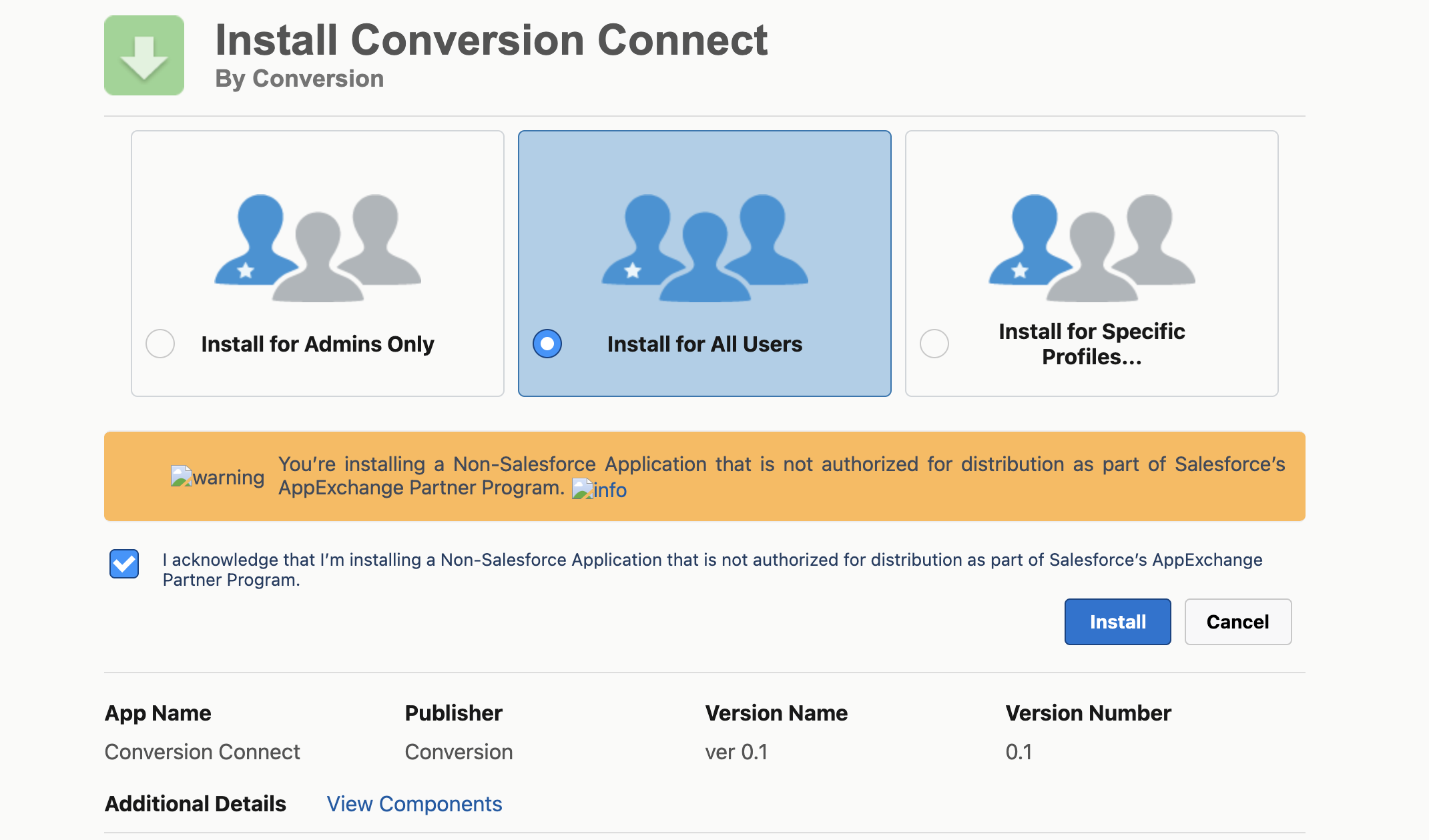 1. Select **Install for All Users**
2. Check the box to acknowledge the third-party access agreement
3. Click **Install**
1. Select **Install for All Users**
2. Check the box to acknowledge the third-party access agreement
3. Click **Install**
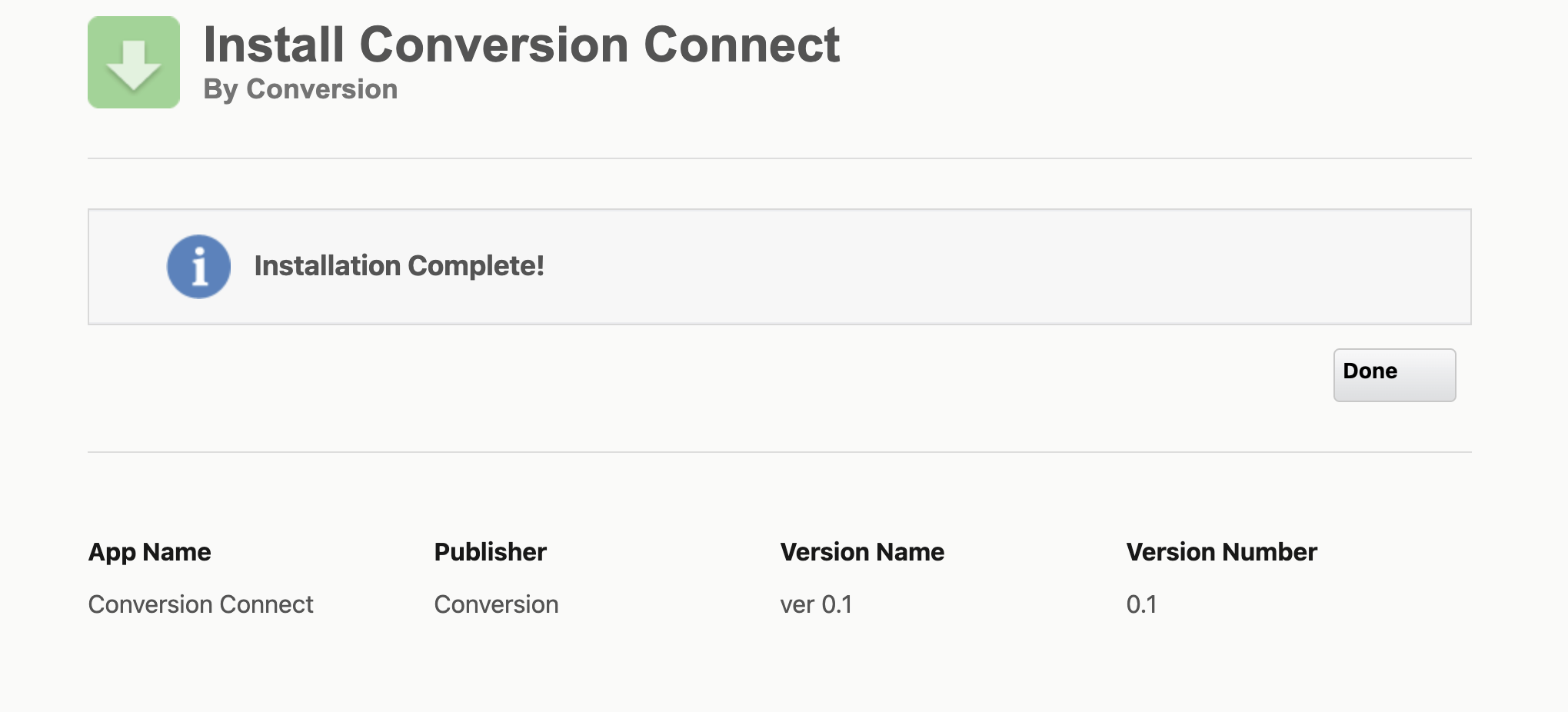 Installation typically completes within a few minutes. You'll see a confirmation screen when it's done.
If the installation takes longer than expected, Salesforce will email you when it completes. You can safely close the tab and check back later.
***
## Connect Conversion to Salesforce
With the package installed, you can now authorize the connection.
1. Log in to your Conversion workspace
2. Go to **Settings** **Syncing**
3. Find Salesforce and click **Connect**
Toggle "Sandbox" to be on if you are connecting to a Salesforce sandbox instance
A Salesforce login window will appear. Log in with your **admin user credentials**.
After granting the requested permissions, Conversion automatically begins syncing your Salesforce data.
The initial sync imports all your existing records and may take anywhere from a few minutes to several hours depending on your data volume. You can monitor progress in **Settings** **Syncing**.
Installation typically completes within a few minutes. You'll see a confirmation screen when it's done.
If the installation takes longer than expected, Salesforce will email you when it completes. You can safely close the tab and check back later.
***
## Connect Conversion to Salesforce
With the package installed, you can now authorize the connection.
1. Log in to your Conversion workspace
2. Go to **Settings** **Syncing**
3. Find Salesforce and click **Connect**
Toggle "Sandbox" to be on if you are connecting to a Salesforce sandbox instance
A Salesforce login window will appear. Log in with your **admin user credentials**.
After granting the requested permissions, Conversion automatically begins syncing your Salesforce data.
The initial sync imports all your existing records and may take anywhere from a few minutes to several hours depending on your data volume. You can monitor progress in **Settings** **Syncing**.