> ## Documentation Index
> Fetch the complete documentation index at: https://docs.conversion.ai/llms.txt
> Use this file to discover all available pages before exploring further.
# Find contacts with the Statement Builder
> Build a contact filter by hand, understand AND and OR, and ask AI to generate or refine a statement.
The Statement Builder answers **which contacts match?** You use the same builder for contact filters, audiences, and workflow conditions. The product reference calls it the [Unified Query Engine](/product-docs/unified-query-engine/overview).
Before you start, choose a contact whose values you know. This example uses **Jack** and **Ava** from a demo workspace. Substitute names from your own test records.
## Open a filter
Open **Contacts** from the sidebar and click **Filter**. You can also open **Filter** from an email's **Preview**, which is useful for finding contacts to test your personalization against.
Here, the rule filters the contacts you can see. In a workflow, **Add criteria** opens the same builder to control who enters. See the [query reference](/product-docs/unified-query-engine/overview) for other places you can use statements.
## Build one condition by hand
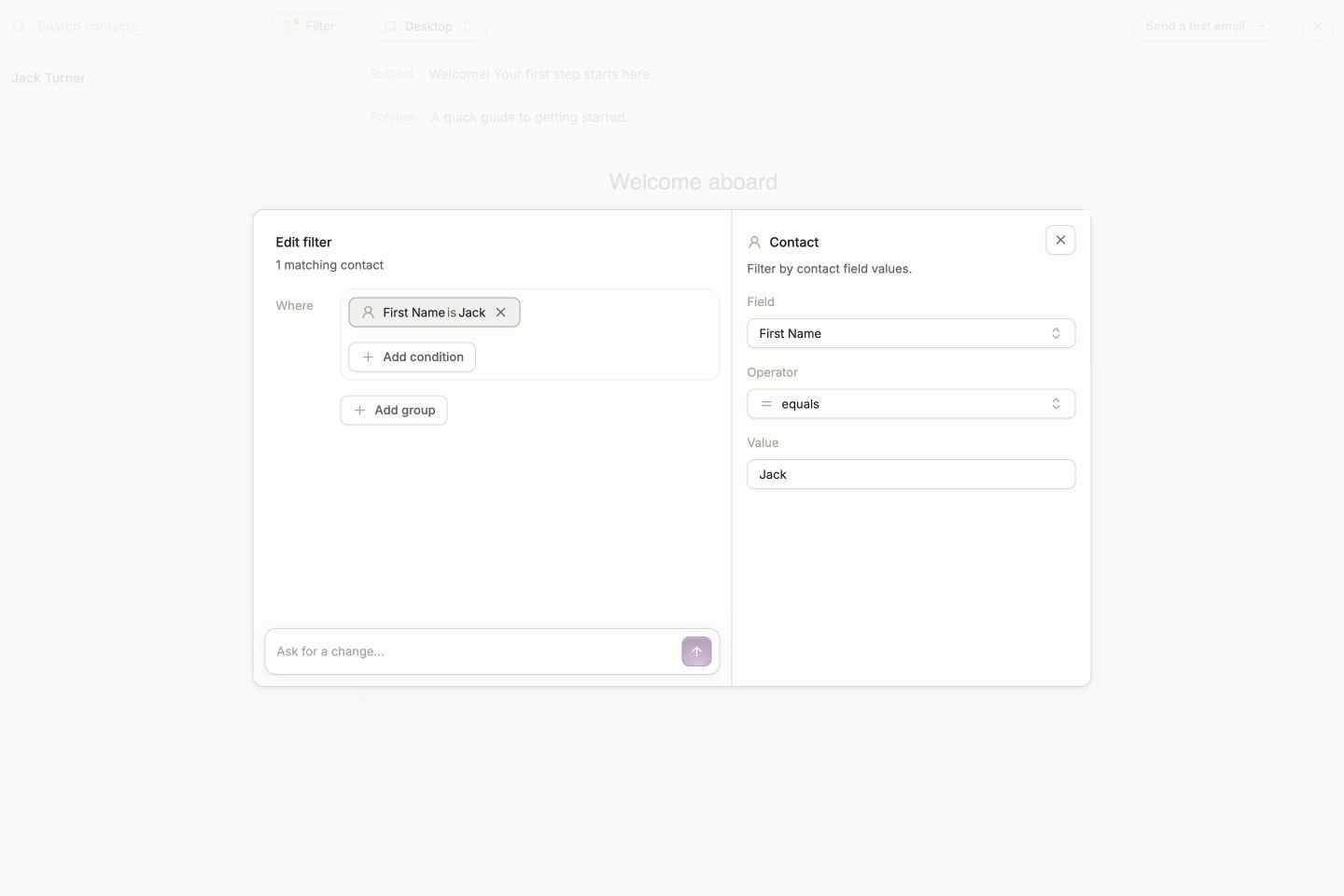
1. In **Edit filter**, choose **Contact** from the condition types on the right. You can also use **Add condition**.
2. Under **Field**, choose **First Name**.
3. Keep **Operator** set to **equals**.
4. Under **Value**, enter **Jack**, or the first name on your test record.
5. Check the condition on the left and the matching-contact count above it.
 Close the builder to inspect the resulting contacts. Check at least one record you expected to match. If you opened it from **Contacts**, you can save the filtered setup as a [view](/product-docs/records/contacts/viewing-contacts#creating-a-custom-view).
A first name is useful for learning the controls, but it is not a unique identifier. Before testing a workflow, use **Email equals your test address** or another rule that selects only the intended test records.
## Combine conditions deliberately
Use **Add condition** for another check, and the **and/or** control to choose how the checks combine.
* **AND** requires every condition to match. “First Name is Jack AND Email is known” finds contacts named Jack who have an email value.
* **OR** requires at least one condition to match. “First Name is Jack OR First Name is Ava” finds either name.
Use **Add group** when part of a rule needs its own logic. For example:
```text theme={null}
Email is known
AND
(First Name is Jack OR First Name is Ava)
```
Both names must pass the email check. Read the controls **within each group** and **between groups** before trusting the result. A misplaced OR can make a filter much broader than intended.
Click an existing condition to edit its details. The available operators depend on the selected field's type; use **is known** or **is not known** when you care whether a value exists.
## Ask AI to generate a statement
In an empty builder, use **Describe the contacts to filter for...**. Describe the records you want, then click the arrow button, **Generate filter**.
For example:
> Find contacts whose first name is Jack or Ava.
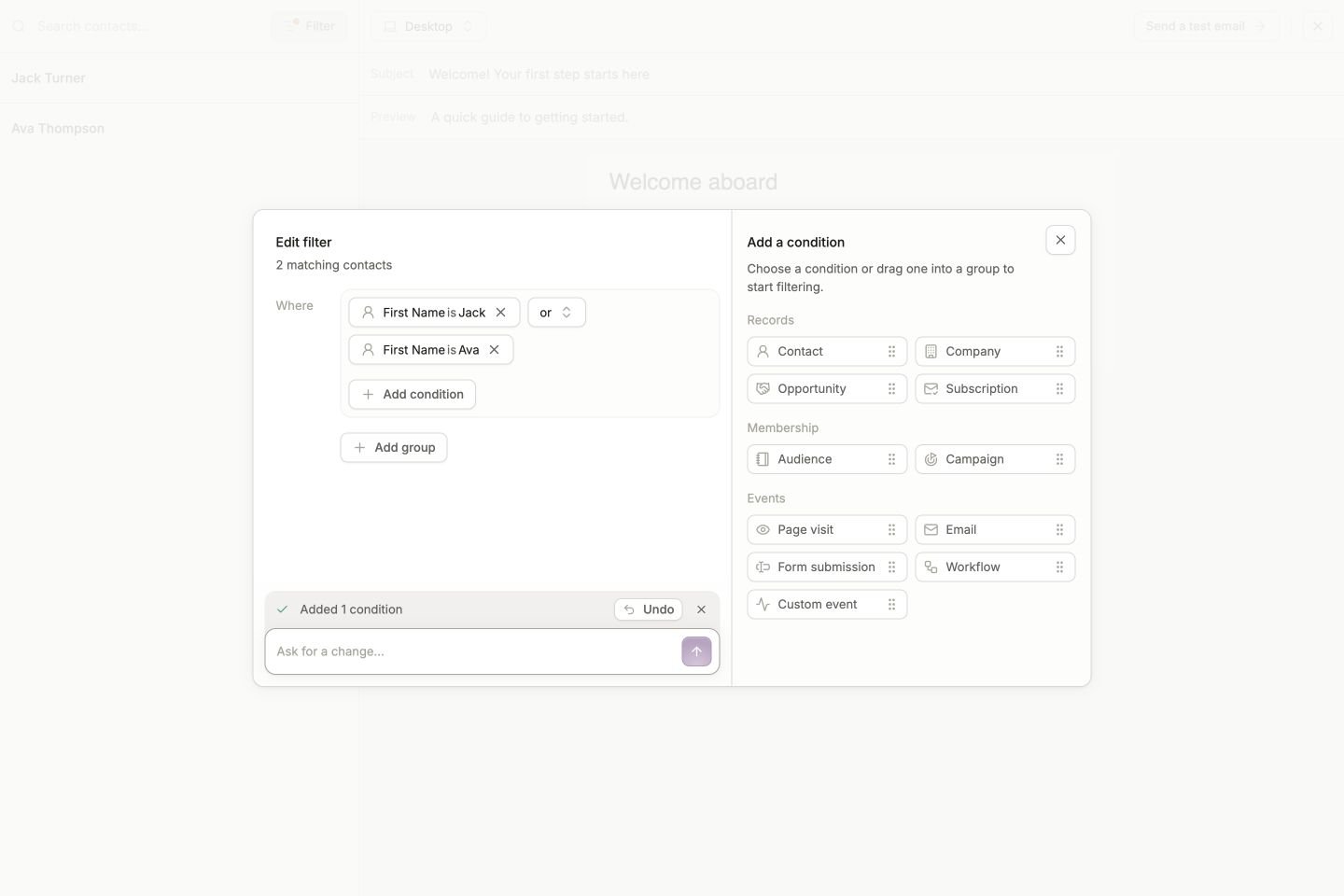
When a filter already exists, the input reads **Ask for a change...**. You can extend the hand-built example with:
> Also include contacts whose first name is Ava. Keep Jack and use OR between the two names.
The result is applied to the builder, with a summary of what changed and an **Undo** button. You can inspect and edit the generated conditions using the same controls as a filter you built yourself.
Close the builder to inspect the resulting contacts. Check at least one record you expected to match. If you opened it from **Contacts**, you can save the filtered setup as a [view](/product-docs/records/contacts/viewing-contacts#creating-a-custom-view).
A first name is useful for learning the controls, but it is not a unique identifier. Before testing a workflow, use **Email equals your test address** or another rule that selects only the intended test records.
## Combine conditions deliberately
Use **Add condition** for another check, and the **and/or** control to choose how the checks combine.
* **AND** requires every condition to match. “First Name is Jack AND Email is known” finds contacts named Jack who have an email value.
* **OR** requires at least one condition to match. “First Name is Jack OR First Name is Ava” finds either name.
Use **Add group** when part of a rule needs its own logic. For example:
```text theme={null}
Email is known
AND
(First Name is Jack OR First Name is Ava)
```
Both names must pass the email check. Read the controls **within each group** and **between groups** before trusting the result. A misplaced OR can make a filter much broader than intended.
Click an existing condition to edit its details. The available operators depend on the selected field's type; use **is known** or **is not known** when you care whether a value exists.
## Ask AI to generate a statement
In an empty builder, use **Describe the contacts to filter for...**. Describe the records you want, then click the arrow button, **Generate filter**.
For example:
> Find contacts whose first name is Jack or Ava.
When a filter already exists, the input reads **Ask for a change...**. You can extend the hand-built example with:
> Also include contacts whose first name is Ava. Keep Jack and use OR between the two names.
The result is applied to the builder, with a summary of what changed and an **Undo** button. You can inspect and edit the generated conditions using the same controls as a filter you built yourself.
 ## Review the meaning, not just the count
Before saving an audience or activating a workflow, check:
* **Object:** Is the rule about the contact, their company, or a related record?
* **Logic:** Do AND, OR, and the groups express what you intended?
* **Scope:** For an activity condition, is the correct email, form, or workflow selected?
* **Time:** Does the activity use the intended time window?
* **Examples:** Do expected contacts match, and do contacts you meant to exclude stay out?
If AI picks the wrong condition, use **Undo**, edit it yourself, or refine the request. Name the field, asset, and time window explicitly. A successfully generated statement still needs your review.
If the builder shows **Invalid conditions**, finish any incomplete field, operator, or value. If it shows zero matches, inspect your test record, check spelling and field choice, and remove one condition at a time to find what excludes it.
Next, use a narrow test-contact filter in [your first workflow](/product-docs/user-guide/first-workflow). For the complete operator and activity catalog, see the [query reference](/product-docs/unified-query-engine/overview).
## Review the meaning, not just the count
Before saving an audience or activating a workflow, check:
* **Object:** Is the rule about the contact, their company, or a related record?
* **Logic:** Do AND, OR, and the groups express what you intended?
* **Scope:** For an activity condition, is the correct email, form, or workflow selected?
* **Time:** Does the activity use the intended time window?
* **Examples:** Do expected contacts match, and do contacts you meant to exclude stay out?
If AI picks the wrong condition, use **Undo**, edit it yourself, or refine the request. Name the field, asset, and time window explicitly. A successfully generated statement still needs your review.
If the builder shows **Invalid conditions**, finish any incomplete field, operator, or value. If it shows zero matches, inspect your test record, check spelling and field choice, and remove one condition at a time to find what excludes it.
Next, use a narrow test-contact filter in [your first workflow](/product-docs/user-guide/first-workflow). For the complete operator and activity catalog, see the [query reference](/product-docs/unified-query-engine/overview).