

Setup your integration user
It’s recommended practice by Salesforce to assign an “Integration User” to each third-party integration. Enterprise Salesforce organizations include five integration user seats as part of their subscription—this section will take you how to set this up for your Conversion integration. If you plan on connecting Conversion to your Salesforce organization with system administrator credentials, you may skip this section and proceed with package installation.1
Create the User
- Navigate to Setup Users Users
- Click “New User”
- Fill in desired General Information— usually the information of an engineer managing your Salesforce organization/integrations
- For User License, select “Salesforce Integration”
- For Profile, select “Minimum Access – API Only Integrations” or “Salesforce API Only System Integrations” if the former is not available.
- Click “Save”
- In the Users view again, click on the name of the integration user
- Scroll to “Permission Set License Assignments” and click “Edit Assignments”
- Scroll “Salesforce API Integration” and enable.
- Click “Save”
2
Assign Permissions
- Navigate to Setup Users Permission Sets
- Click “New” and name the permission set “Conversion Integration Permissions” Save
-
Configure Object Permissions
For each of the objects listed above:Conversion interacts with the following standard objects from Salesforce:You may restrict access to any of the above objects and may also fine-tune field-level security. This guide explains how to grant access to all objects and fields.
- Grant “Modify All Records” and “Create” permissions.
-
Enable “View All Fields” and “Edit Access” for all fields.
For some objects (like Tasks, Events, Opportunities) there may be “Visible” and “Available” checkboxes. Make sure both are enabled.For Tasks and Events, there is no “Modify All Records” permission. Make sure all other listed permissions are enabled.
- Save the new permissions for the object
-
Configure System Permissions
- API Enabled: Grants access to the Salesforce API, which we use to sync your data
- Customize Application: Any new fields created in Conversion are created in Salesforce as custom fields using this permission. When enabled, the following permissions are also auto-enabled:
- View Setup and Configuration
- Manage Custom Permissions
- View all Users: You can create tasks and assign them to Salesforce Users in your Conversion workflows!
- Save the system permissions
-
Assign the permission set to your integration user
- Click “Manage Assignments” “Add Assignment” and select your integration user.
- Then click “Next” “Assign” to grant the listed permissions!
Package installation and OAuthorization
This section will take you through how to install the Conversion’s Salesforce package and authorize Conversion to begin syncing your data.1
Install Conversion's Salesforce package
The Salesforce user downloading this package must have the “Download AppExchange packages” permission— this is usually done by a system administrator, not the integration user mentioned above.
Due to recent security provisions by Salesforce, package installation is necessary and must take place before an attempt to OAuth into your organization.
1
Start Installation
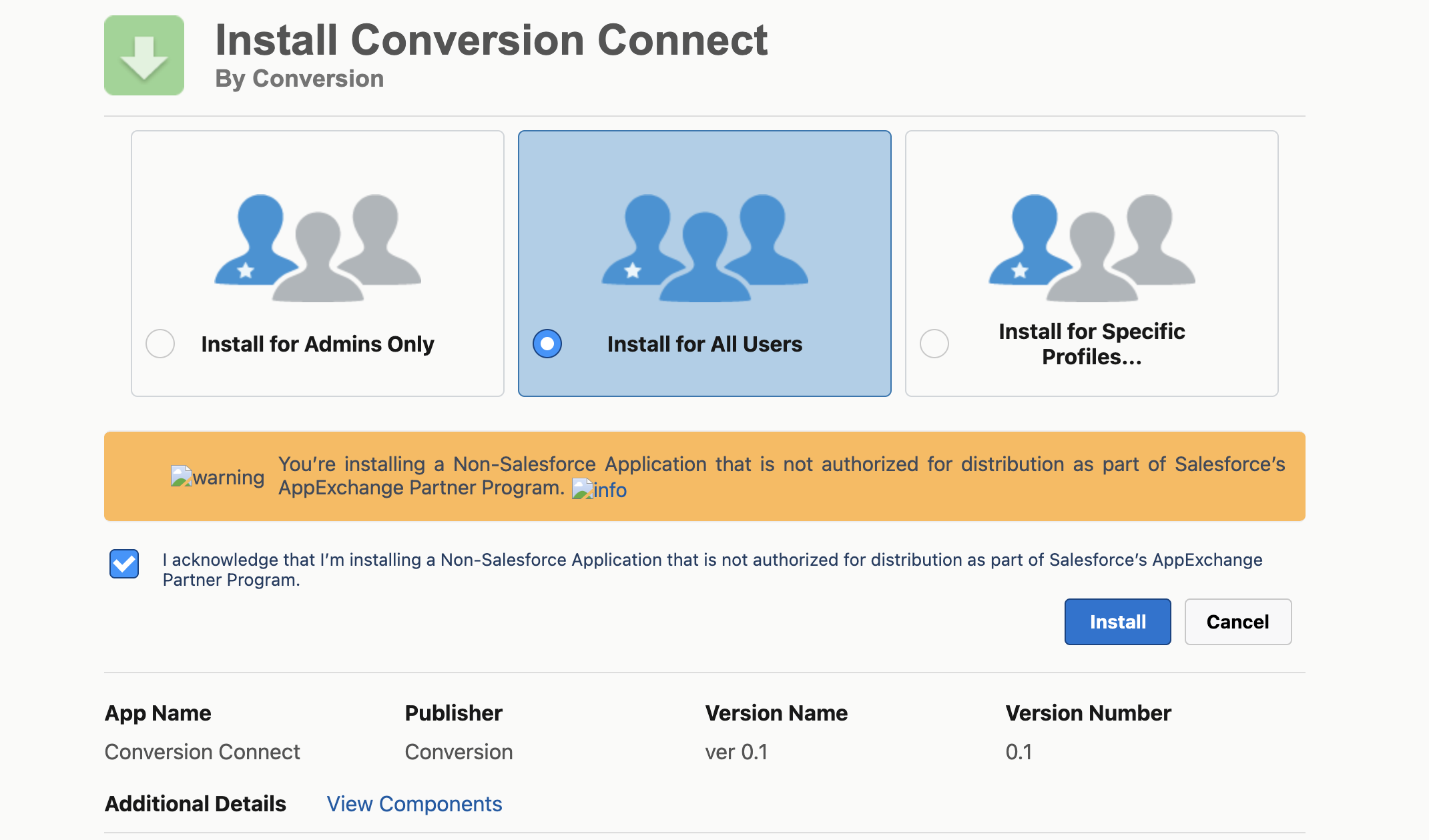
2
On Success
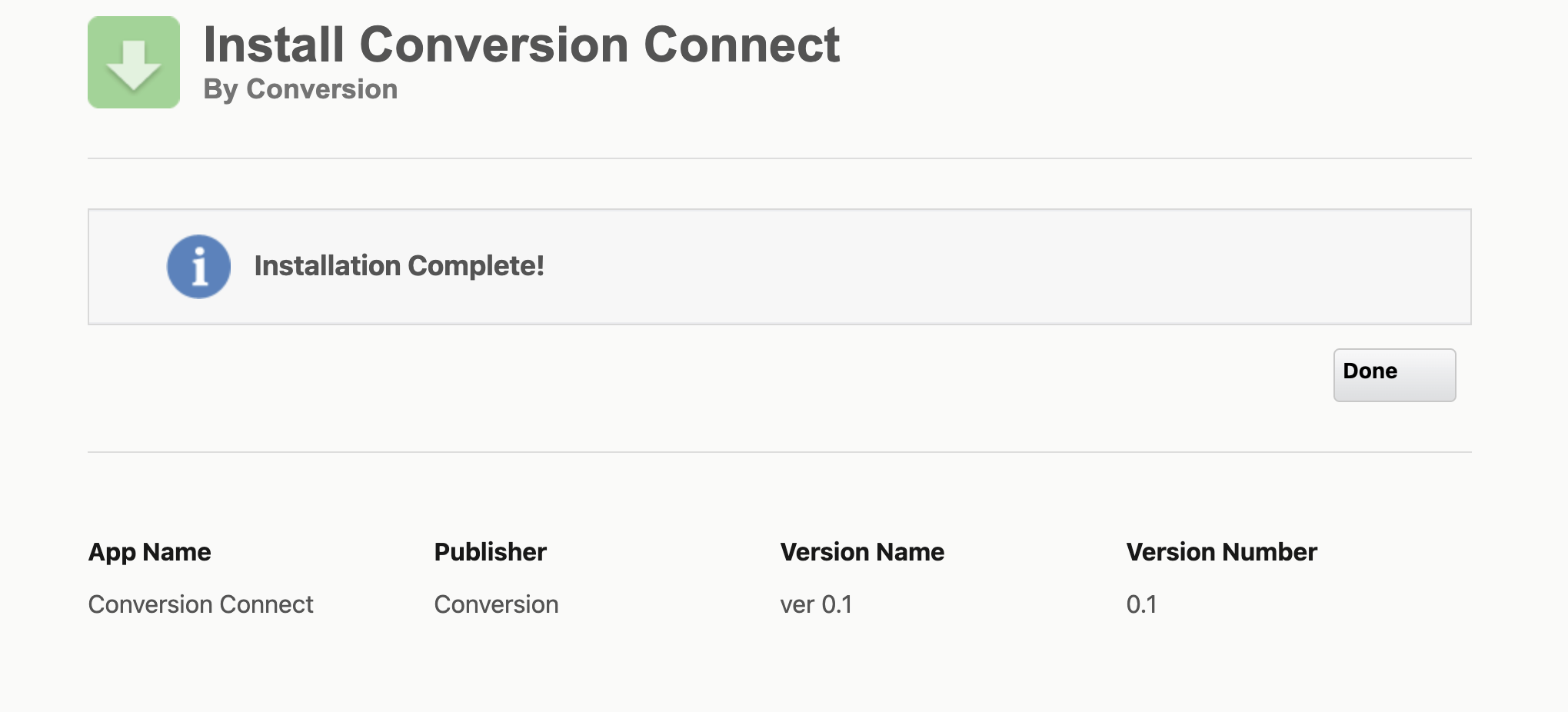
2
Authorize the Conversion App
Ensure that you have completed the “Setup your Integration User” section prior to completing this step
3
Start Syncing
You’re good to go! After granting our app the requested scopes, we will automatically begin the initial sync of your Salesforce data. Please allow up to a few hours for this to complete— the first sync ingests far more data than any subsequent sync.