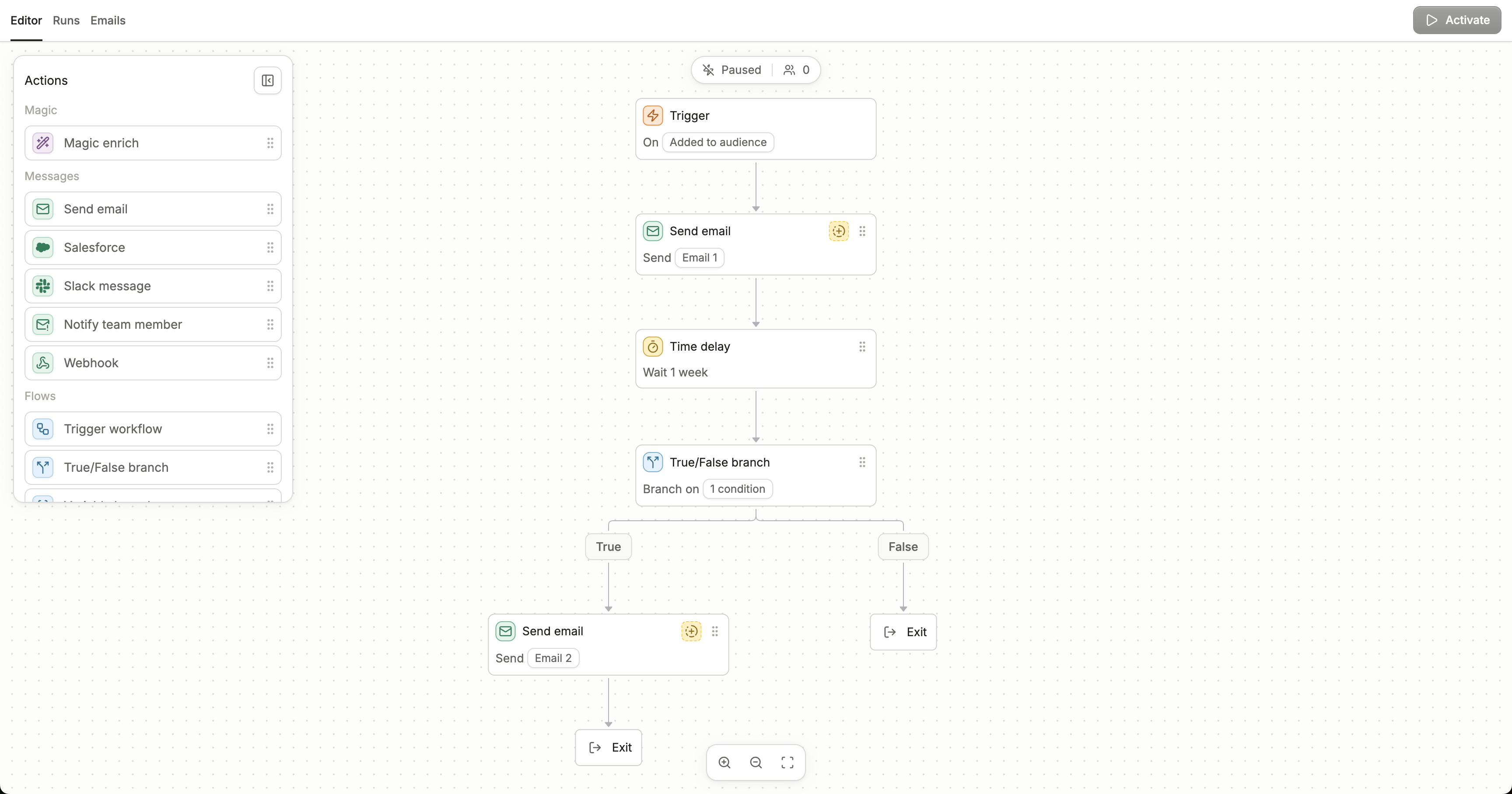
The workflow editor is the first view you see when opening a workflow. You can edit the workflow and its nodes in this view.
Adding nodes
You can add nodes in two ways: dragging in nodes from the node sidebar, or clicking the ”+” icon in the workflow.
You can expand the node sidebar by clicking the “expand” icon in the top right corner of the menu
Bottom navigation bar
You can use the bottom bar to navigate around the workflow:
- Zoom in (
CMD/CTRL + )
- Zoom out (
CMD/CTRL - )
- Zoom to fit (
SHIFT 1 )
When selecting a node, you can additionally use the bottom bar to:
- Copy the node
- Move the node
- Delete the node (
DELETE)
You can also view the number of contacts currently in the workflow at the top of the workflow. This number will update in real-time as well!