Skip to main contentHow it works
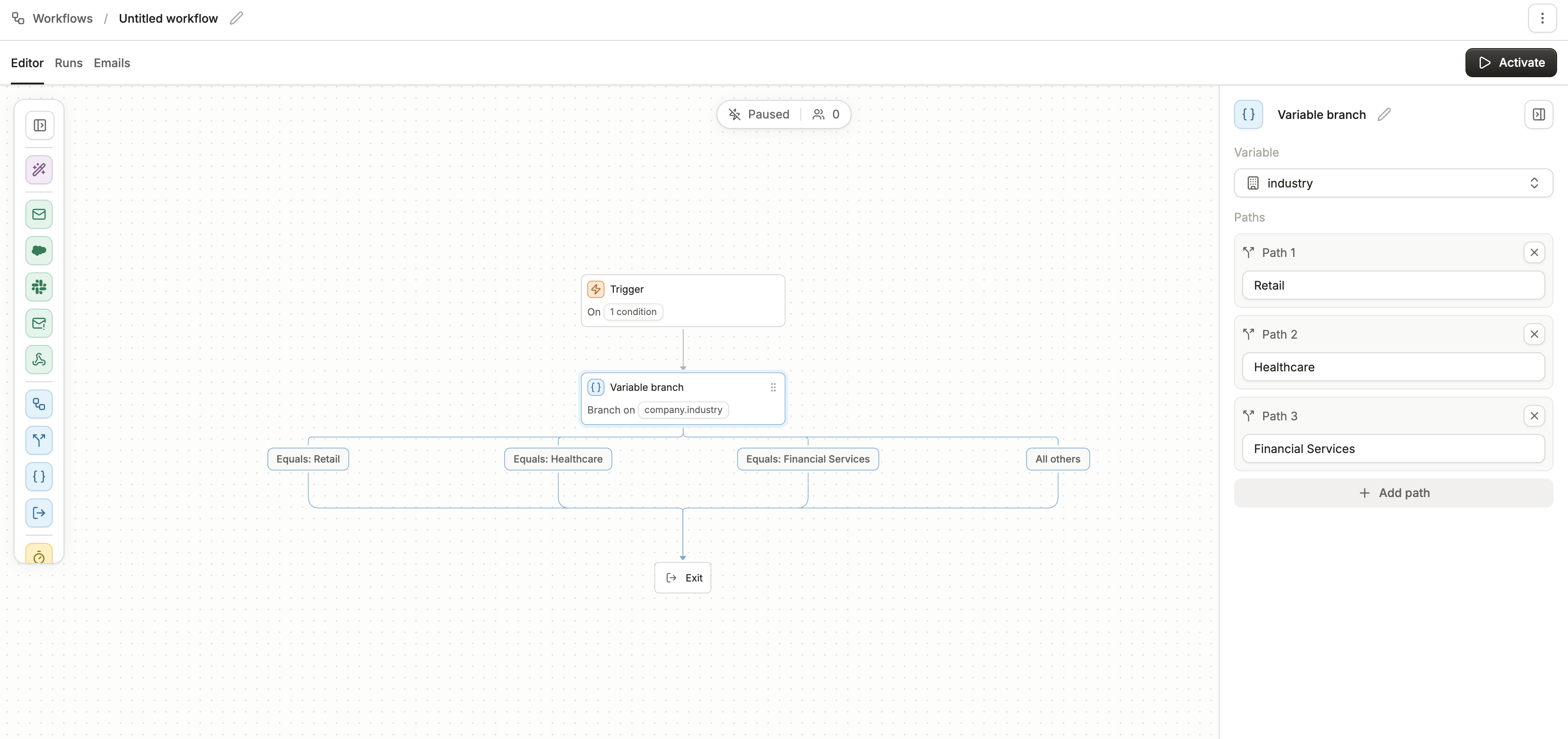
When a contact reaches a Variable Branch in a workflow, Conversion checks the value of the variable you’ve selected (for example: industry, region, or plan_type). Each defined path corresponds to a specific value of that variable.
- If the contact’s variable value matches one of the defined paths, they will continue down that branch.
- If the value does not match any of the listed paths, the contact will automatically be routed down the All others branch.
This ensures every contact always has a valid path forward.
Example
Let’s say you’re branching based on the industry variable:
- Path 1:
Software Development → Send a product-led email sequence.
- Path 2:
Financial Services → Send compliance-focused content.
- Path 3:
Healthcare → Send security and integrations content.
- All others → Send a general nurture sequence.
If a contact has industry = Software Development, they’ll follow Path 1. If they have any other industry value (like Education, Retail, or Unknown), they’ll be routed to All others.
- No duplicate values: Each path must have a unique value. If you try to reuse the same value across multiple paths, Conversion will show a conflict error.
- Always an “All others” branch: Even if you don’t define it explicitly, every Variable Branch automatically has an “All others” path so no contacts get stuck.
- Exact matches only: Branching values must exactly match the variable’s stored value (including capitalization, spaces, or punctuation).
- Single-variable logic: A Variable Branch evaluates only one variable. If you need multiple conditions with AND/OR logic, use a True/False Branch instead.
Common Uses
- Sending different onboarding sequences based on plan type (Free, Pro, Enterprise).
- Routing leads to different sales reps based on region.
- Tailoring nurture streams to industry.
- Providing personalized offers depending on lifecycle stage.
Best practices
- Keep it clean: Don’t create dozens of paths unless necessary. Group smaller segments together and use “All others” for long-tail values.
- Review variable formatting: Make sure the values you expect (e.g.
Information Technology & Services) match exactly how they’re stored in your CRM or enrichment source.
- Test with sample contacts: Run test contacts through your workflow to confirm they branch as expected.
- Combine with enrichment: Use Magic Enrichment to fill in missing variables before branching, so more contacts land in a specific path instead of “All others.”