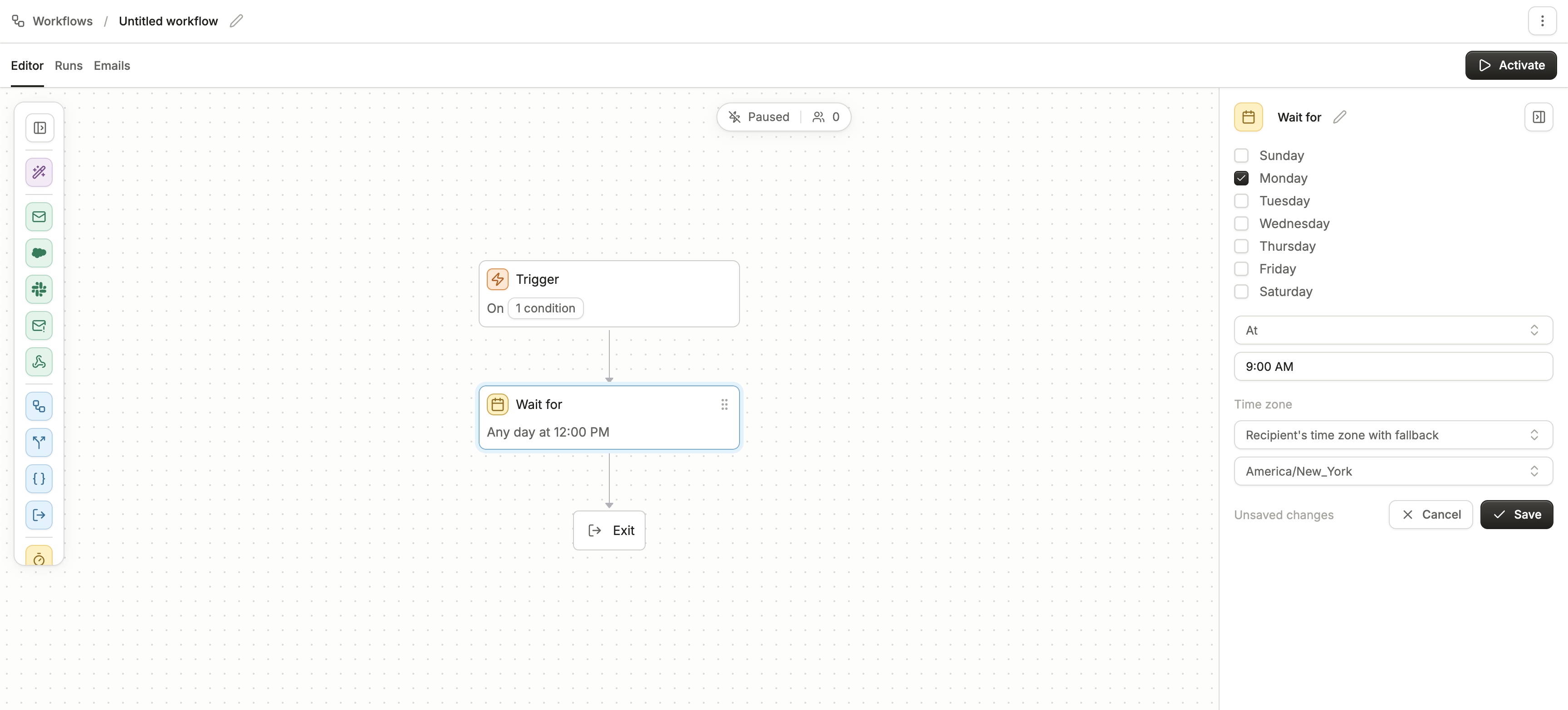
Skip to main contentThe Wait For block allows you to pause a workflow until a specific day and time before continuing to the next step. This ensures contacts move forward only when the configured timing conditions are met.
Configuration Options
When configuring a Wait For block, you can set:
- Days of the Week
- Select one or more days when the workflow can advance.
- By default, all seven days are enabled.
- You can narrow this down (for example, weekdays only).
- Time of Day
- At: Specify a single exact time (e.g., 12:00 PM).
- Between: Define a time window (e.g., 12:00 PM–12:15 PM).
- The system will randomly distribute contacts within this time window to reduce sending spikes and improve deliverability.
- Useful for sending large campaigns where even distribution matters.
- Time Zone
- Recipient’s Time Zone with Fallback
- Uses the recipient’s local time zone if available.
- Falls back to a default custom zone if the recipient’s zone is unknown.
- Ensures consistent local delivery (for example, all recipients get the email at noon their time).
- Custom Time Zone
- Applies a single fixed time zone for all contacts (e.g., America/New_York).
- Useful when actions are tied to team schedules or a global event time.
Example Use Cases
- Precise Send: Wait until 9:00 AM (recipient’s local time) on weekdays to deliver a nurture email.
- Smoothed Delivery: Wait between 10:00 AM–10:30 AM (recipient’s local time) to send campaign emails without overwhelming servers.
- Operational Task: Wait until Monday at 8:00 AM EST to trigger a Slack message for the sales team.
- Event Reminder: Wait until the day before an event at 3:00 PM (recipient’s time zone) to send reminders.
Behavior In Workflows
- Contacts are held at this step until both the day and time conditions are satisfied.
- If a contact enters after the specified time window, they are held until the next available valid day and time.
- The “Between” option introduces controlled randomness, ensuring smoother message delivery during peak send times.