

Open the builder from the content you are editing
- Add or select a Text block where the greeting should appear.
- Place the cursor at the start of the text or after a space, then type
/. - Choose Liquid. The Insert Liquid dialog opens.
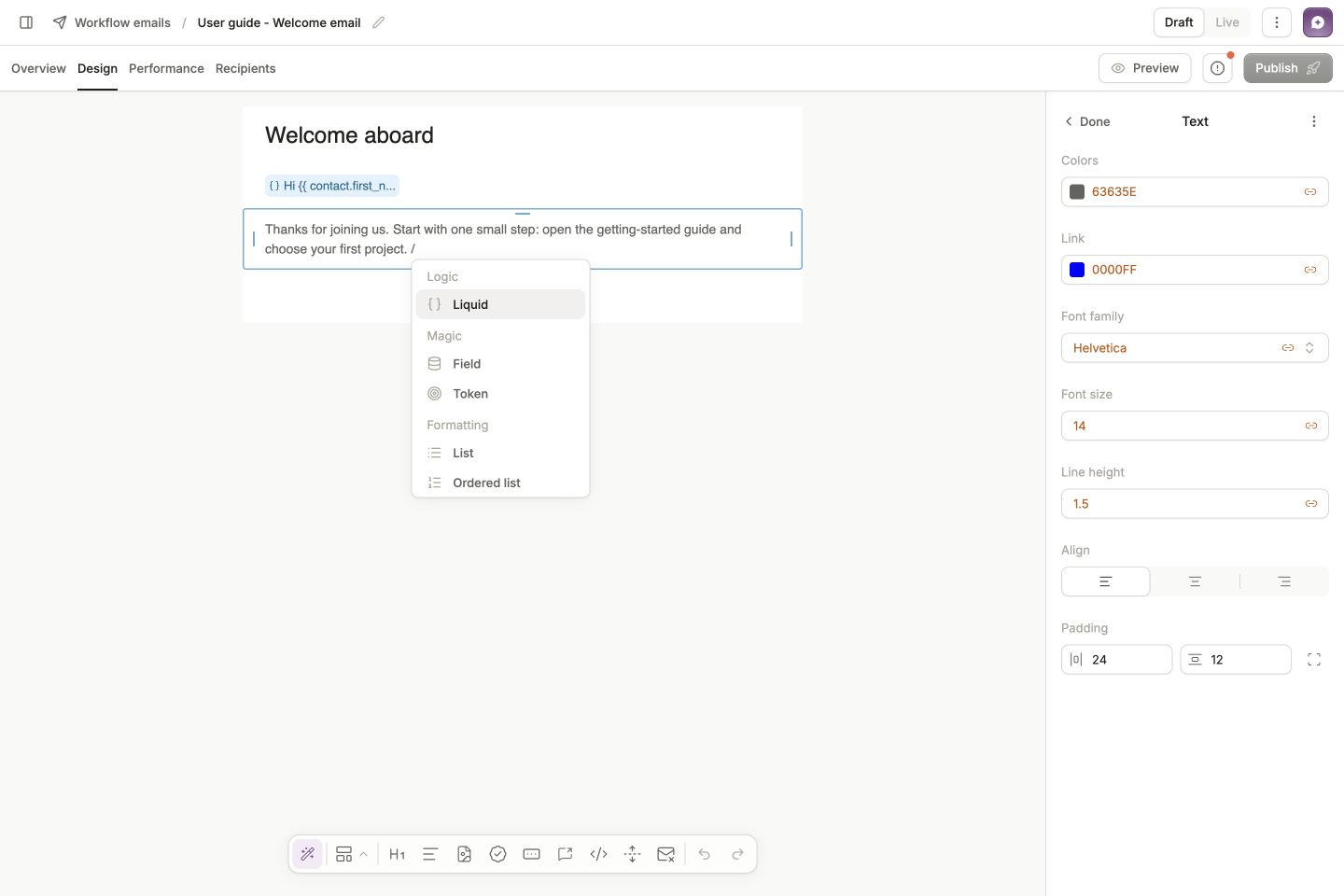
Type / in the text to open the inline menu, then choose Liquid. The menu opens at your cursor.
Ask AI to write the greeting
In Describe what this should say…, enter:Write a greeting: Hi followed by the contact’s first name and a comma. Use there when the first name is missing.Click the arrow button, Generate Liquid. The AI uses your request and any Liquid already in the editor to generate a template. A successful result replaces the editor’s contents and shows an Undo action. When provided, a sample result appears beneath the editor.
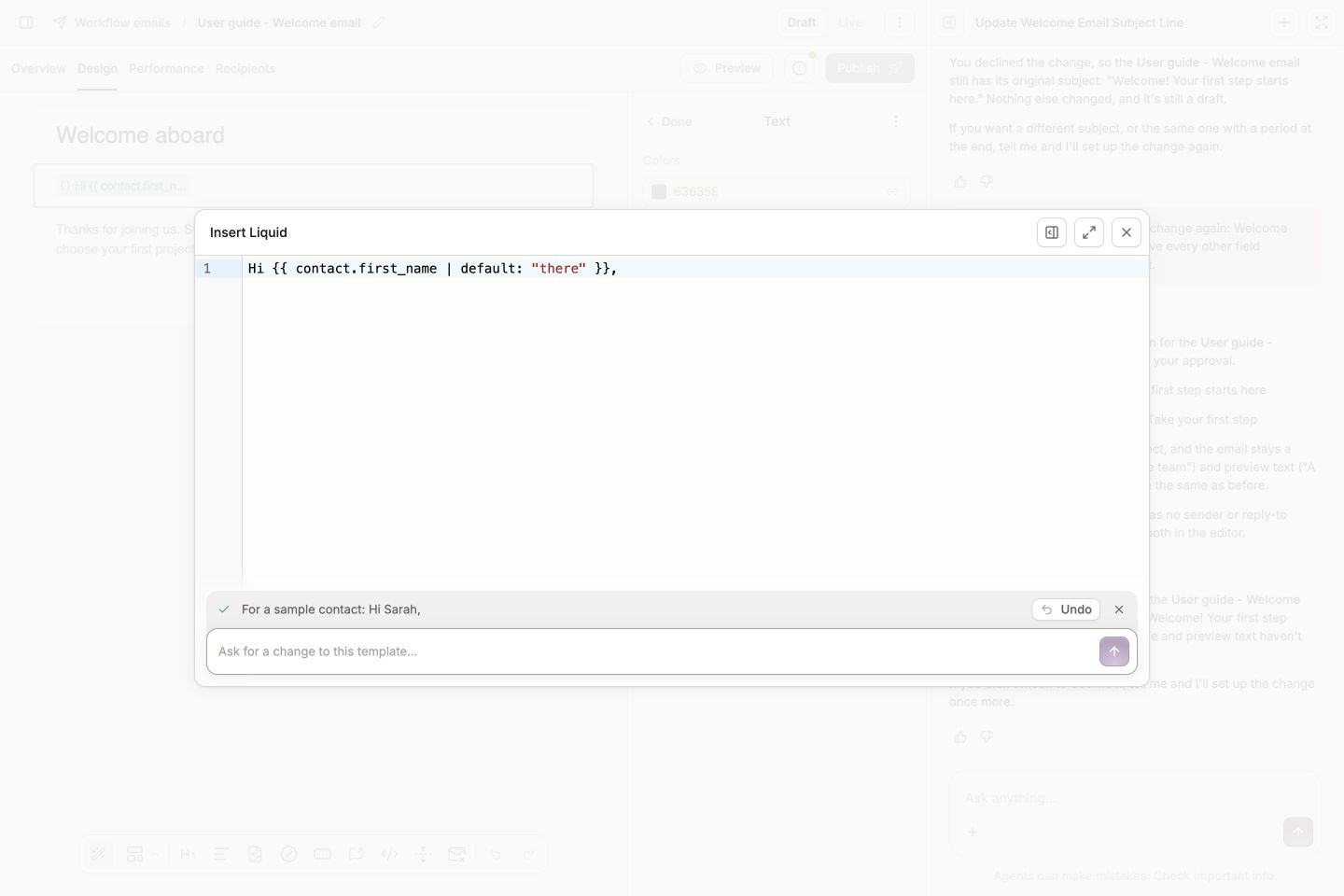
AI writes the Liquid into the editor. Review the expression and sample output, or use Undo to restore the previous version.
Find the data you can use
Liquid is evaluated from one contact’s perspective. Start with the contact’s fields, then follow the company or related records available to that contact. When writing manually, use the editor’s field suggestions instead of guessing a custom field key. For related records and more advanced examples, use the Liquid data reference. To inspect actual values while checking an email:- Close Insert Liquid and open Preview.
- Search for a contact by name or email, or use Filter to find contacts with particular data.
- Select a contact. The email renders for that person.
- Click View contact to inspect their record when a value differs from what you expected.
- Return to the email and select another contact to compare.
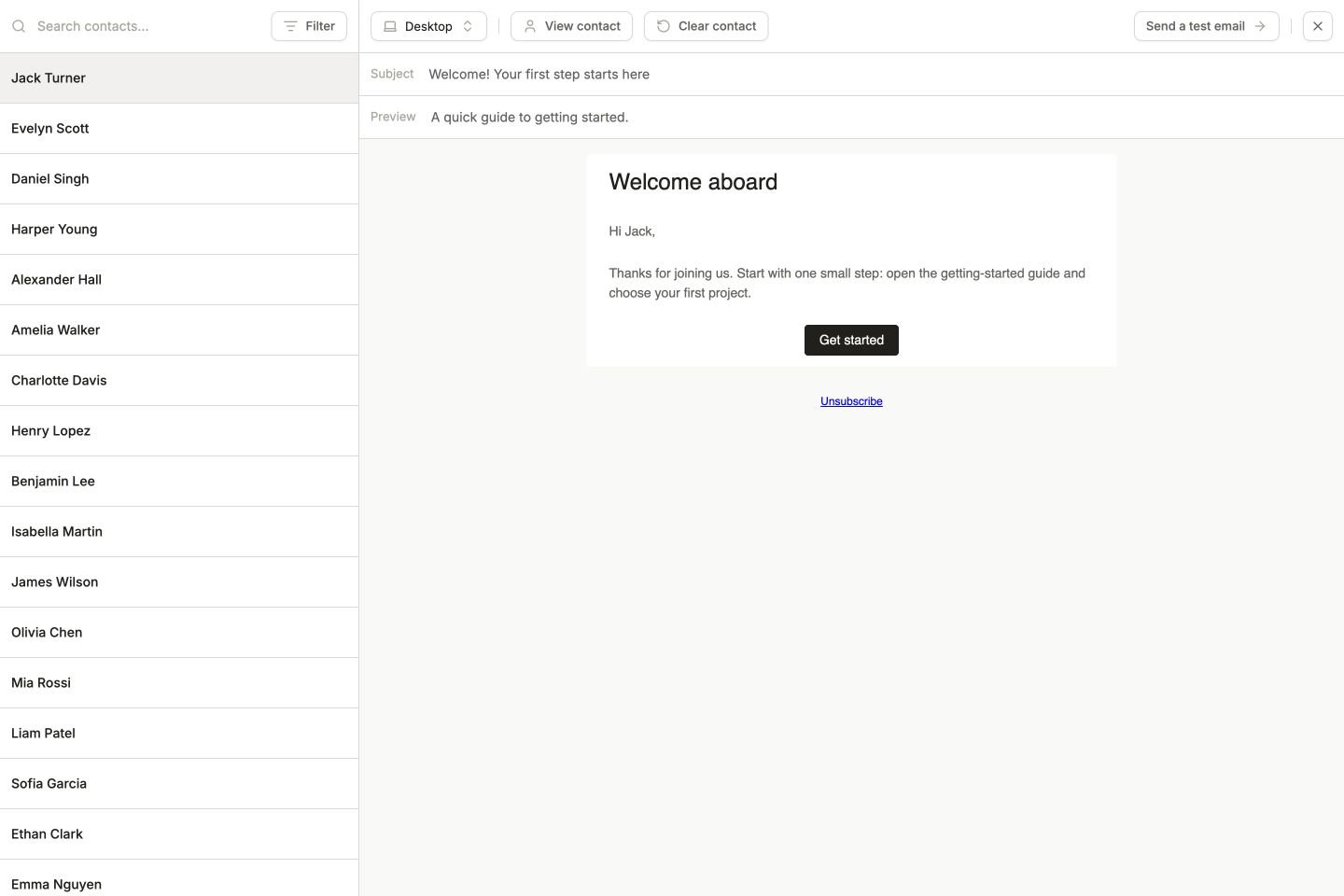
Preview connects the Liquid to real contact data. Here, selecting Jack changes the greeting to Hi Jack.
Check missing data as well as the happy path
Check the full email with at least one contact who has the field and, when available, one who does not. Clear contact is also useful for checking the greeting’s fallback without a selected record. An AI sample is one example, not proof that every contact has the same data. Missing company links, empty fields, and different related records can change the output. If the greeting is blank, inspect the selected contact’s First Name and check that your template includes the fallback. For other cases, see handling missing data and validation errors.Ask for a more specific change
Once the greeting works, the AI input changes to Ask for a change to this template…. Describe the output you want and which existing behavior to keep. For example:Keep the first-name fallback, but change the greeting from Hi to Hello.For more complex content, explain which related records matter, how to choose between several matches, and what to show when none match. Then verify the result with representative contacts before publishing the email. Continue with finding contacts, or return to previewing and testing your email.