

Open chat from the page you need help with
- Open your email and select Design.
- Click the purple Ask AI button in the upper-right corner. Chat opens beside your work on a wide screen.
- Drag the divider if you need more room for the conversation or the editor.
Start with a specific request
You can ask for advice before asking for changes:Review this welcome email. Suggest one clearer call to action and explain why. Do not edit it yet.When you want an edit, describe both the change and what should stay the same:
For User guide - Welcome email, change only the subject to “Welcome aboard! Take your first step”. Keep the body, sender, and preview text unchanged. Leave it as a draft.Send the message and let the turn finish. Tool cards show what Conversion AI reads or does. A request to edit an existing email produces a proposal for you to review.
Review the proposed change
- Click the edit awaiting your review banner.
- Check the asset name and the before-and-after values. For this example, only Subject should change.
- Select Approve or Reject for the asset, then click Submit.
- Return to Overview and check the subject. If you approved the edit, preview the draft again before publishing it.
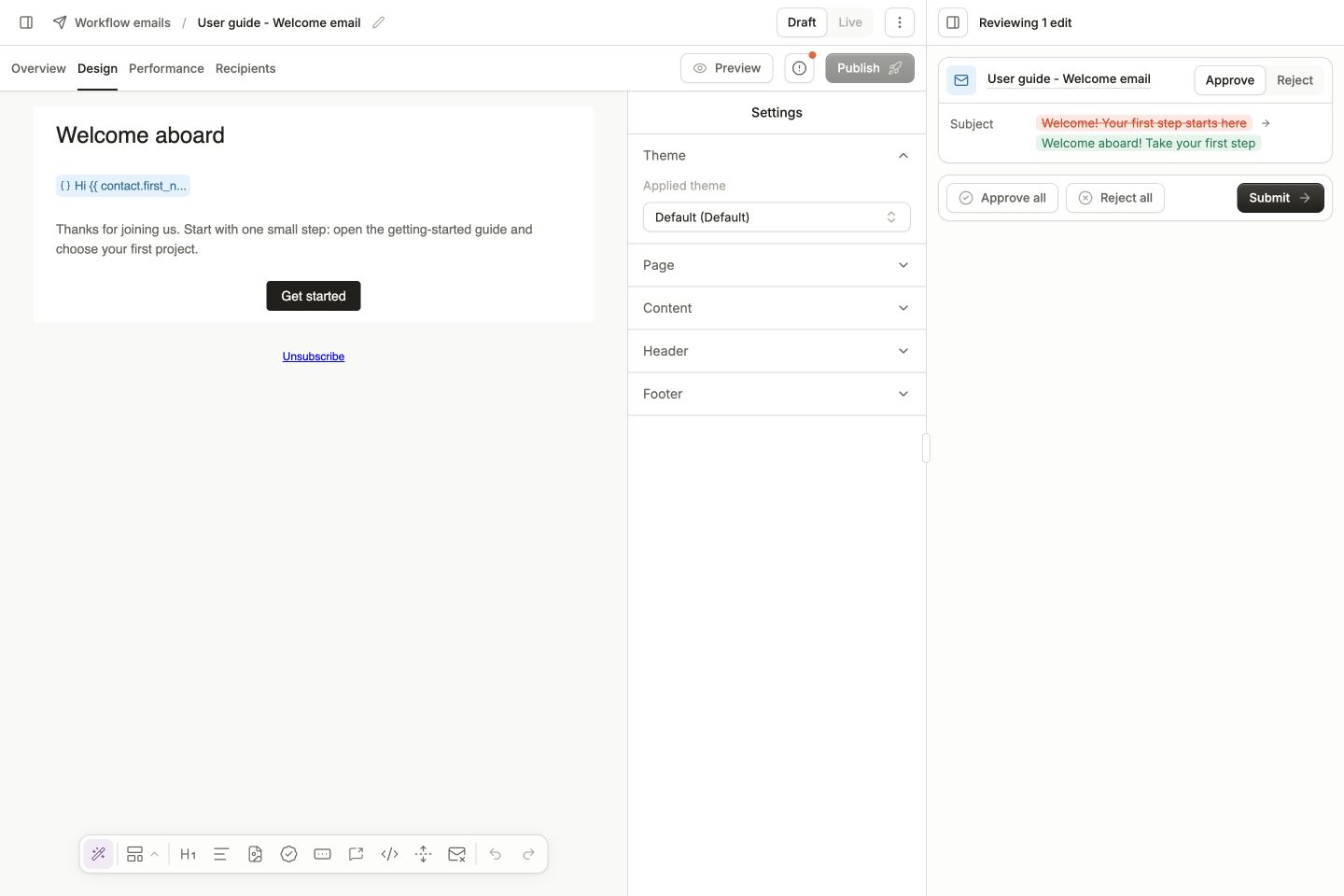
Review the proposed subject beside the email. Approval applies the edit to the draft; rejection keeps the existing value.
Keep the conversation useful
Give the AI the outcome, relevant asset, and any constraints. For example:
If you only need a value or a condition, use the AI input inside the Liquid Builder or Statement Builder. Those tools write directly into the builder and offer Undo. They do not use chat’s pending-edit review.
Use Chat in the main sidebar to revisit a conversation from history. A new chat starts a new conversation, so restate the context it needs. When the same job becomes routine, turn it into an agent.