

Open a filter
Open Contacts from the sidebar and click Filter. You can also open Filter from an email’s Preview, which is useful for finding contacts to test your personalization against. Here, the rule filters the contacts you can see. In a workflow, Add criteria opens the same builder to control who enters. See the query reference for other places you can use statements.Build one condition by hand
- In Edit filter, choose Contact from the condition types on the right. You can also use Add condition.
- Under Field, choose First Name.
- Keep Operator set to equals.
- Under Value, enter Jack, or the first name on your test record.
- Check the condition on the left and the matching-contact count above it.
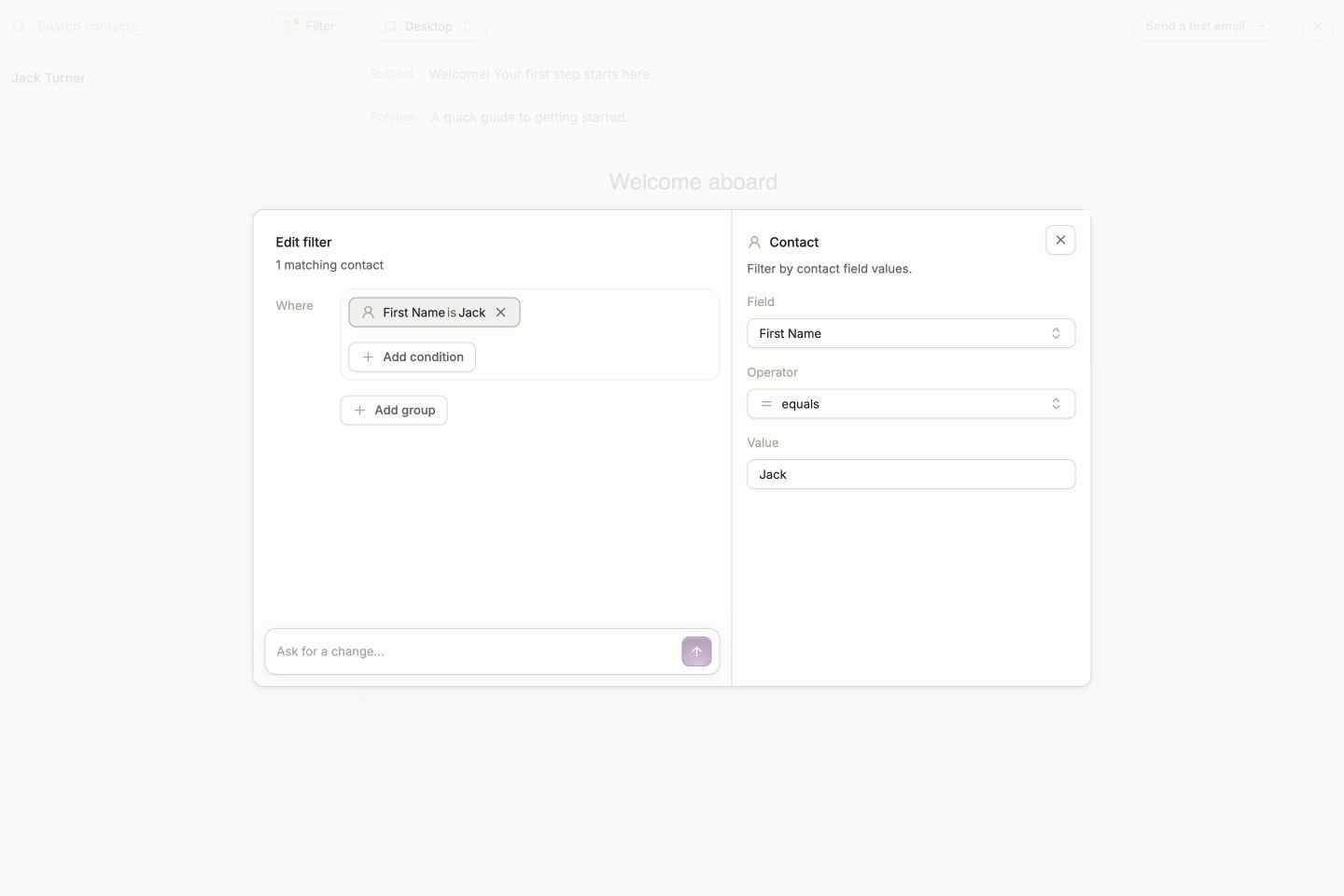
A condition has a field, an operator, and a value. The left side summarizes the rule and shows how many contacts match.
A first name is useful for learning the controls, but it is not a unique identifier. Before testing a workflow, use Email equals your test address or another rule that selects only the intended test records.
Combine conditions deliberately
Use Add condition for another check, and the and/or control to choose how the checks combine.- AND requires every condition to match. “First Name is Jack AND Email is known” finds contacts named Jack who have an email value.
- OR requires at least one condition to match. “First Name is Jack OR First Name is Ava” finds either name.
Ask AI to generate a statement
In an empty builder, use Describe the contacts to filter for…. Describe the records you want, then click the arrow button, Generate filter. For example:Find contacts whose first name is Jack or Ava.When a filter already exists, the input reads Ask for a change…. You can extend the hand-built example with:
Also include contacts whose first name is Ava. Keep Jack and use OR between the two names.The result is applied to the builder, with a summary of what changed and an Undo button. You can inspect and edit the generated conditions using the same controls as a filter you built yourself.
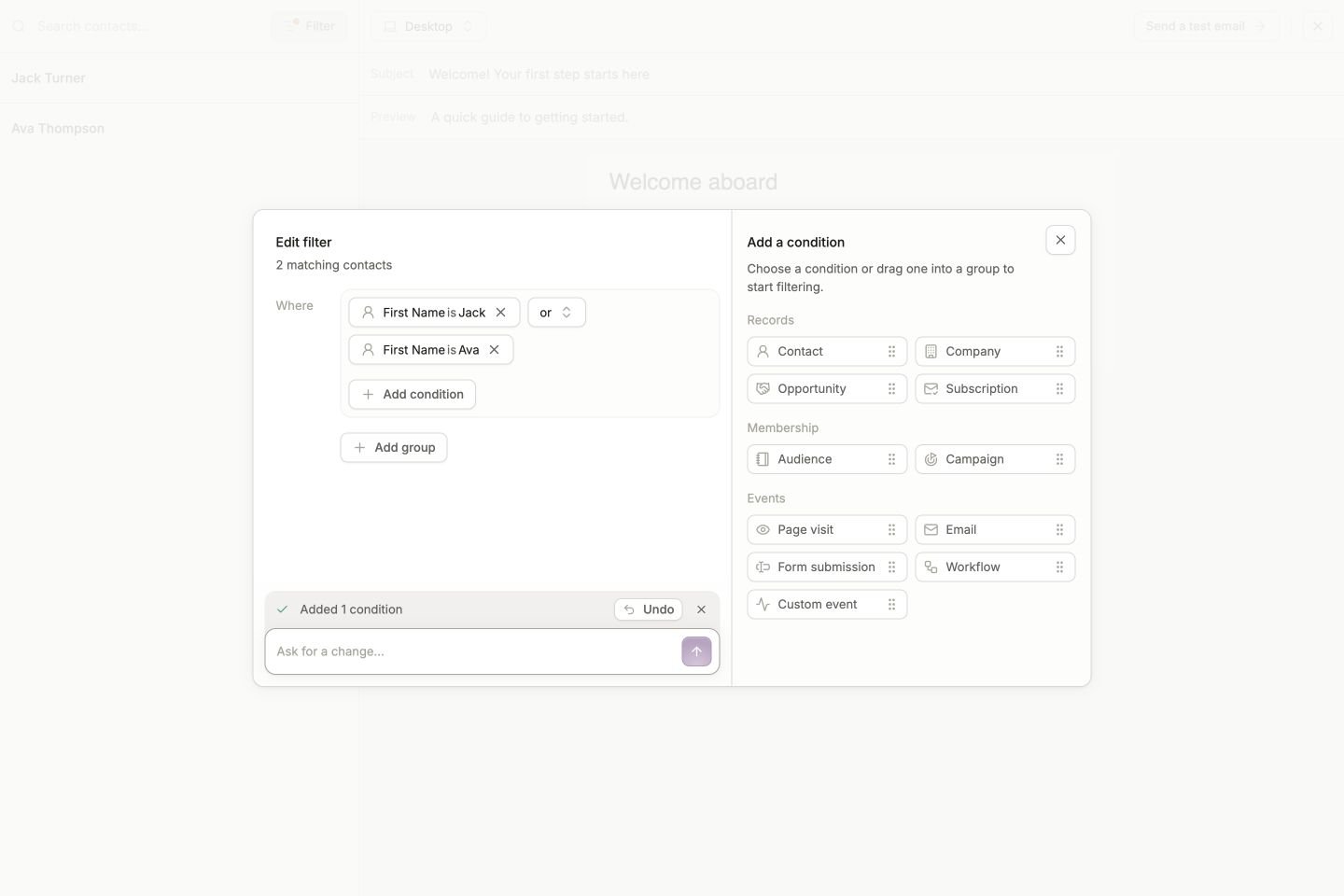
The AI has added Ava with OR, so either name matches. Review the conditions and count before using the rule.
Review the meaning, not just the count
Before saving an audience or activating a workflow, check:- Object: Is the rule about the contact, their company, or a related record?
- Logic: Do AND, OR, and the groups express what you intended?
- Scope: For an activity condition, is the correct email, form, or workflow selected?
- Time: Does the activity use the intended time window?
- Examples: Do expected contacts match, and do contacts you meant to exclude stay out?