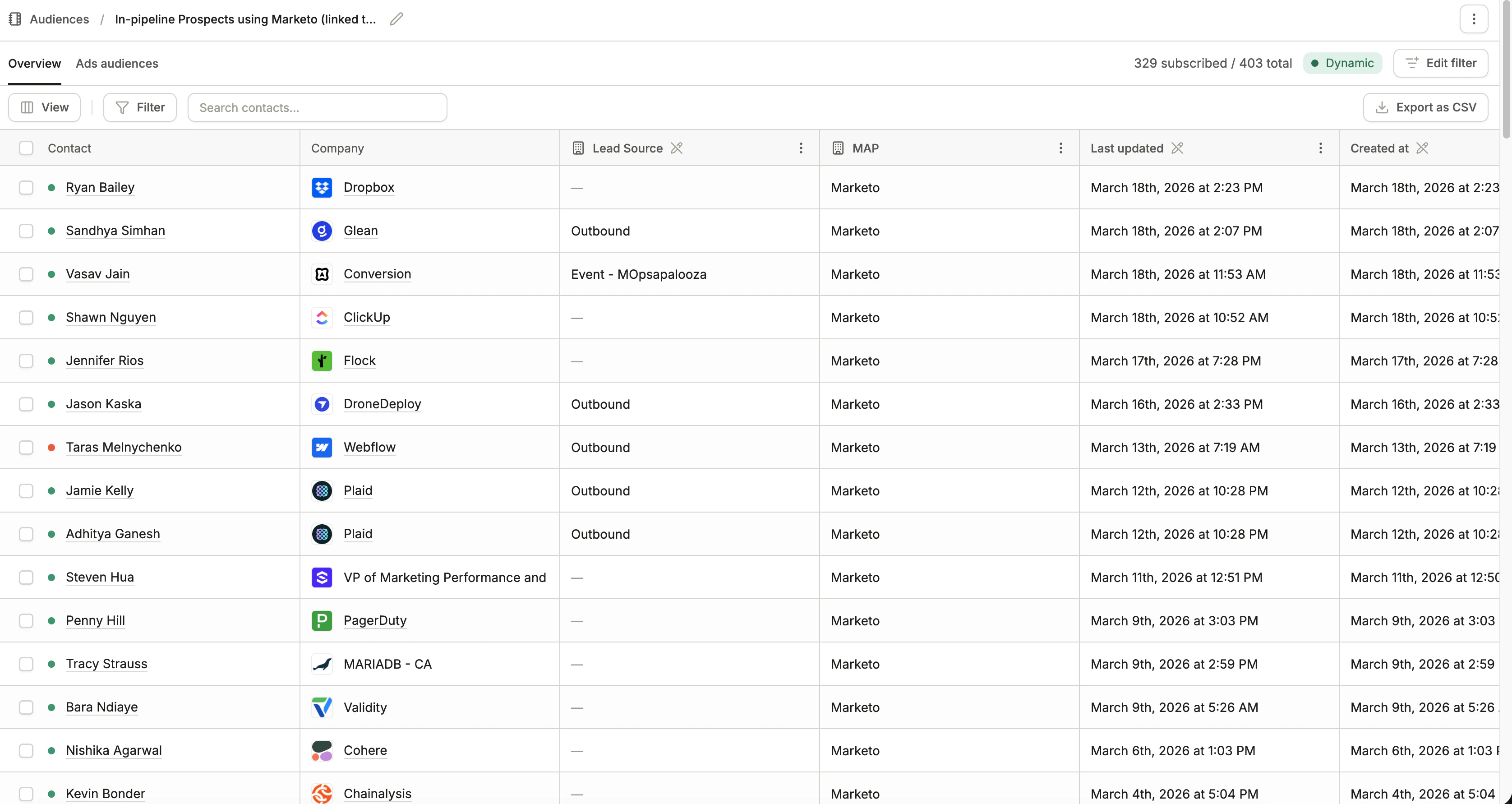
Once an audience has been created, you can manage its membership and update how contacts are filtered or added.
How you manage contacts in an audience depends on its type.
Dynamic audiences
Static audiences
For dynamic audiences, membership is controlled entirely by your filter criteria. To change which contacts are included, click Edit filter in the top right to update the conditions.Conversion will automatically re-evaluate the audience and add or remove contacts based on the updated filter.
For static audiences, you manage contacts manually. Click Add contacts in the top right and choose one of the following:| Option | Description |
|---|
| Select contacts | Search for and add individual contacts from your Conversion contact list |
| Import from CSV | Upload a CSV file to add contacts in bulk |
To remove contacts, select them from the audience table and delete them from the audience.
When adding contacts to a static audience via CSV import, you can map each column in your file to a contact or company field in Conversion.
Any columns you don’t want to import can be skipped. They won’t affect existing contact data.
If a contact with the submitted email address already exists, their record will be updated with any mapped field values from the CSV.
Searching and filtering within an audience
Within any audience, you can search for specific contacts or narrow the view using filters.
Use the Filter button to apply conditions based on contact or company fields.
Filtering within an audience is useful for spot-checking which contacts match a particular criteria before exporting or taking action on them.
Exporting an audience
To export the contacts in an audience, click Export as CSV in the top right. This downloads a CSV of all contacts currently in the audience view.