

Views
The default view is All contacts, which shows every contact in your workspace. You can switch between views using the dropdown in the top-left corner of the contacts page.Creating a custom view
To create a custom view:- Apply one or more filters using the Filter button (see Filtering contacts below).
- Once your filter is applied, click Save view in the top-right corner.
- Give the view a name and save it.
If you make changes to an existing view, such as adding/changing a filter condition, you need to save the view again for the changes to persist
Filtering contacts
Click the Filter button in the toolbar to open the filter panel. This uses the Unified Query Engine to let you build conditions and groups that segment your contacts by any combination of field values and activity criteria.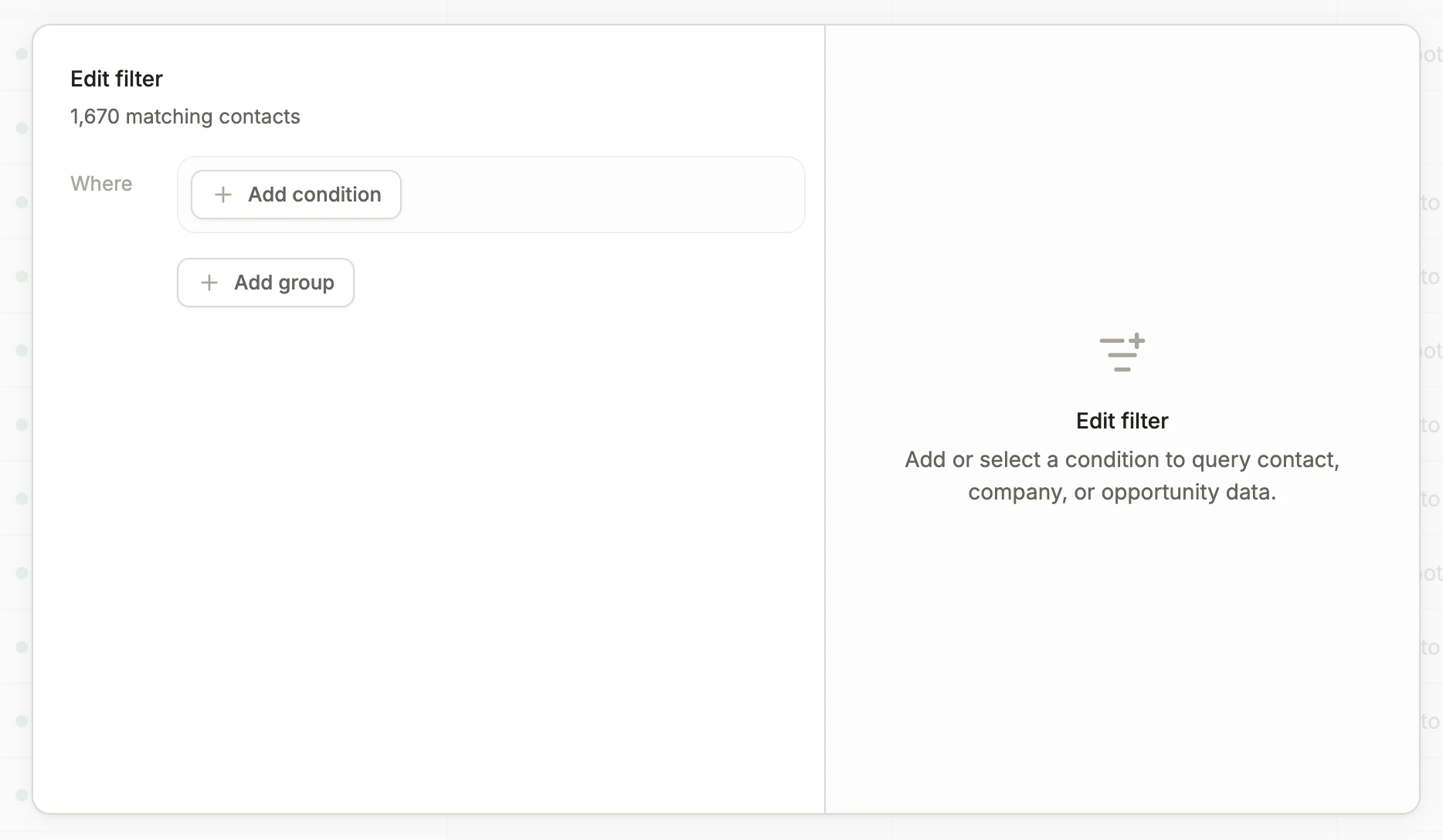
The Filter Panel
Columns
Click the Columns button in the toolbar to choose which fields are displayed as columns in the current view. Columns are organized into the following categories:- Contact standard fields
- Contact custom fields
- Contact system fields
- Company standard fields
- Company custom fields
- Company system fields
The Company fields refer to the values of the contact’s directly linked company.