

These settings only apply to embedded Conversion forms.
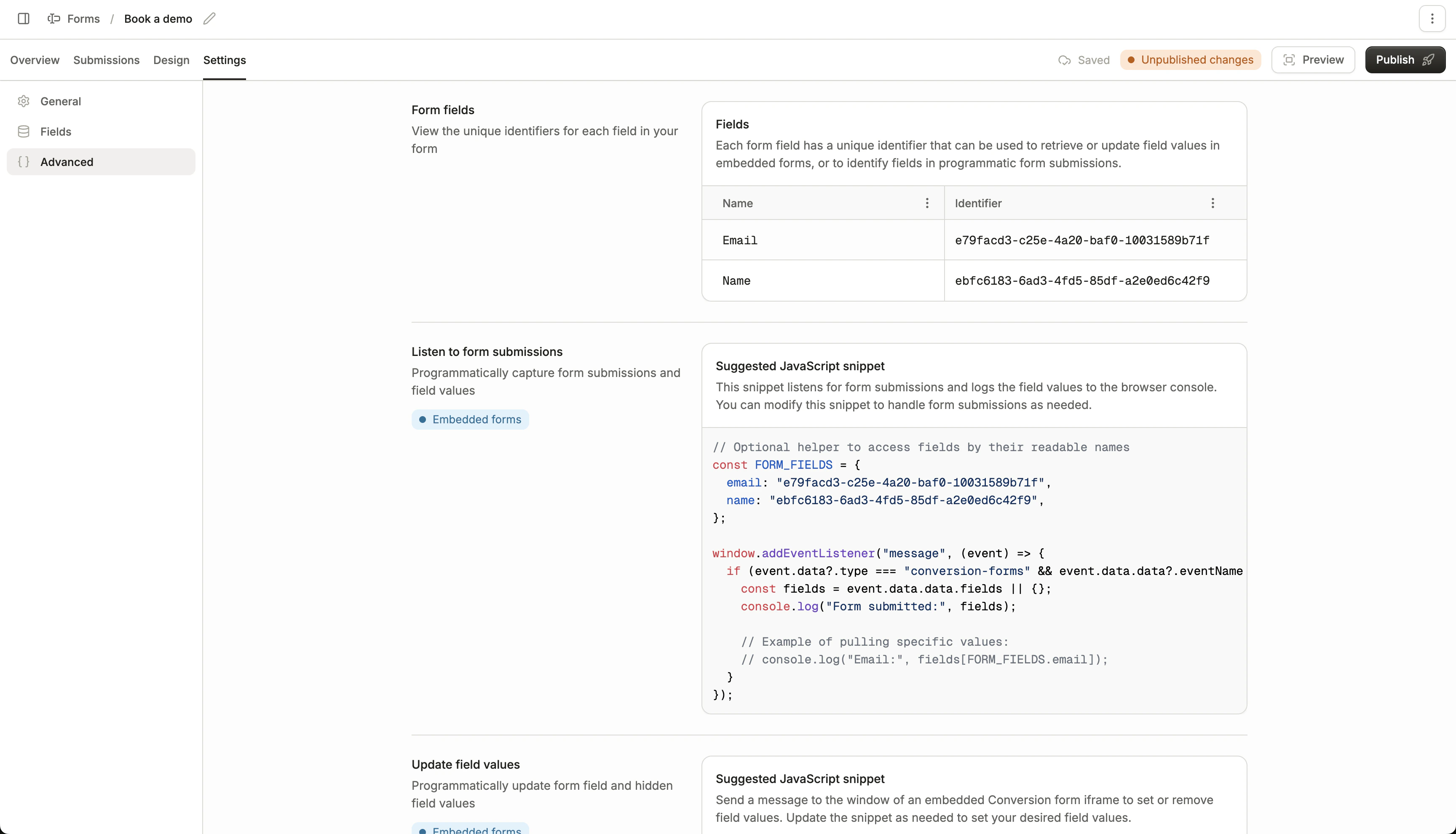
Form fields
This table maps each form field (both displayed and hidden fields) to its field ID, which is used to identify it programmatically.Listen to form submissions
The following JavaScript snippet shows how to retrieve submitted form field values from an embedded Conversion form.1
Define a helper object
Define a helper object to store the field IDs for each field. These IDs are used to reference field data in your code.
2
Wait for form submission
Add an event listener for the
submitted event, which fires when the form has been submitted.3
Read the submitted fields
Extract values from the
fields object, which maps each field ID to its submitted value.A multi-checkbox field arrives as one value listing every selected option, separated by semicolons, for example
analytics;automation.Update field values
The following JavaScript snippet shows how to programmatically update field values on an embedded Conversion form.1
Define a helper object
Define a helper object to store the field IDs for each field. These IDs are used to target specific fields when setting values.
2
Wait for the form to render
Add an event listener for the
"conversion-forms-ping" event, which fires when the form is ready to receive messages.3
Post a message to the iframe
Send a message to the form iframe with a Values must be strings, and dropdown and multi-checkbox fields only accept their configured option values. Pre-select multiple checkbox options by joining their values with semicolons, for example
fields object mapping each field ID to the value you want to set.To clear a field, set its value to
nullanalytics;automation. See Dropdown and checkbox values.