

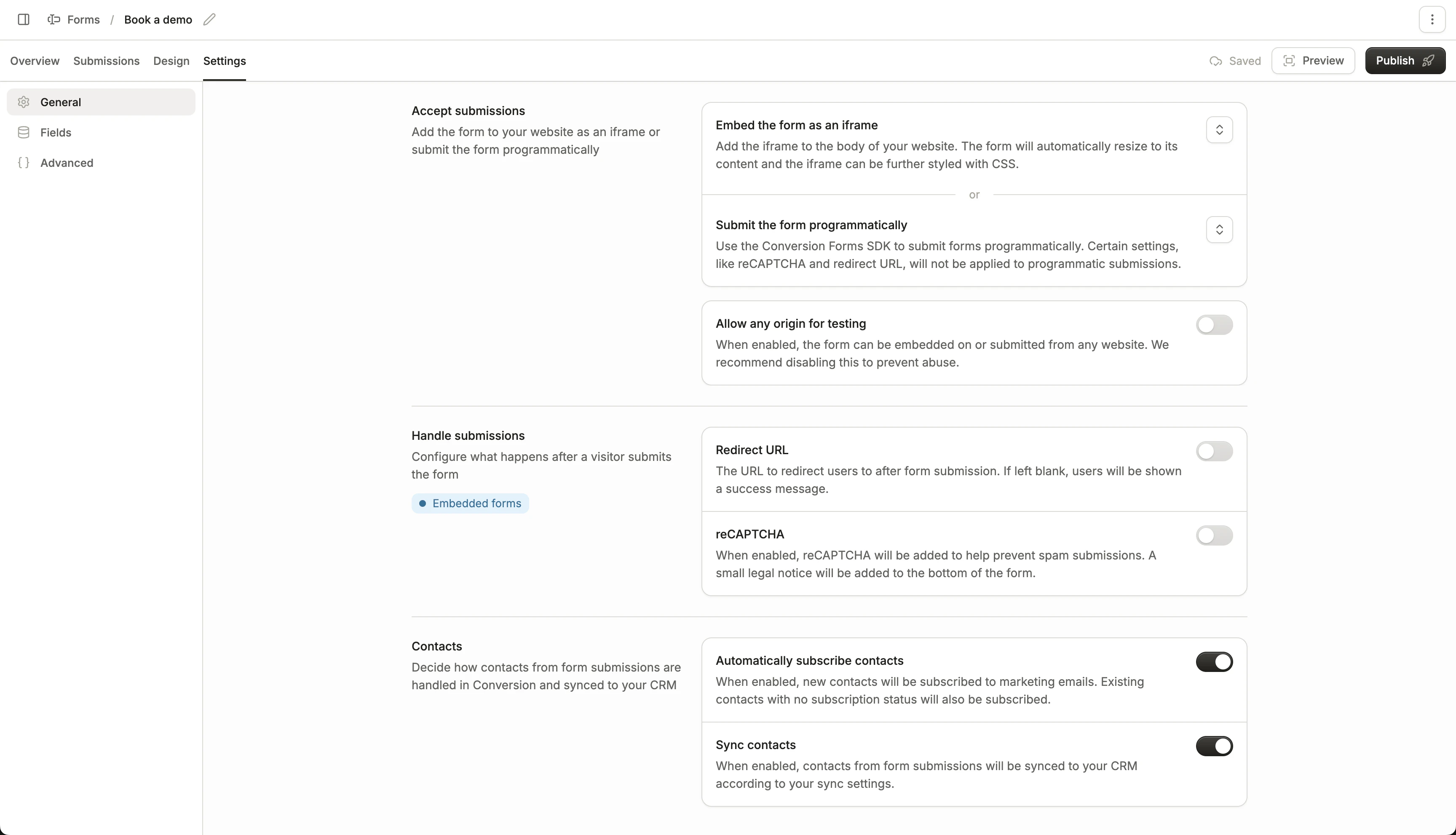
Accept submissions
This section provides two methods of adding your Conversion form to your website:- iframe script (to embed the Conversion form)
- Forms SDK script (read more about our Forms SDK)
This section is only available for Conversion forms, not external forms that Conversion listens to
Handle submissions
Configure the following settings:- Redirect URL: Choose whether you want the form to redirect to another page after a successful submission. If turned off, the submit button will display “Submitted” after submission.
- reCAPTCHA: Choose to enable reCAPTCHA, which users will need to pass in order to submit the form.
This section is only available for embedded Conversion forms
Contacts
Configure how the form handles contact syncing and creation:- Automatically subscribe contacts: Contacts that fill out this form will be marked as “subscribed,” if they previously had no subscription status.
-
Sync contacts: Contacts that fill out this form will be synced to your CRM, following your CRM sync settings.
This includes both new contacts that are created, and contacts that are currently in Conversion that aren’t yet synced to your CRM.