

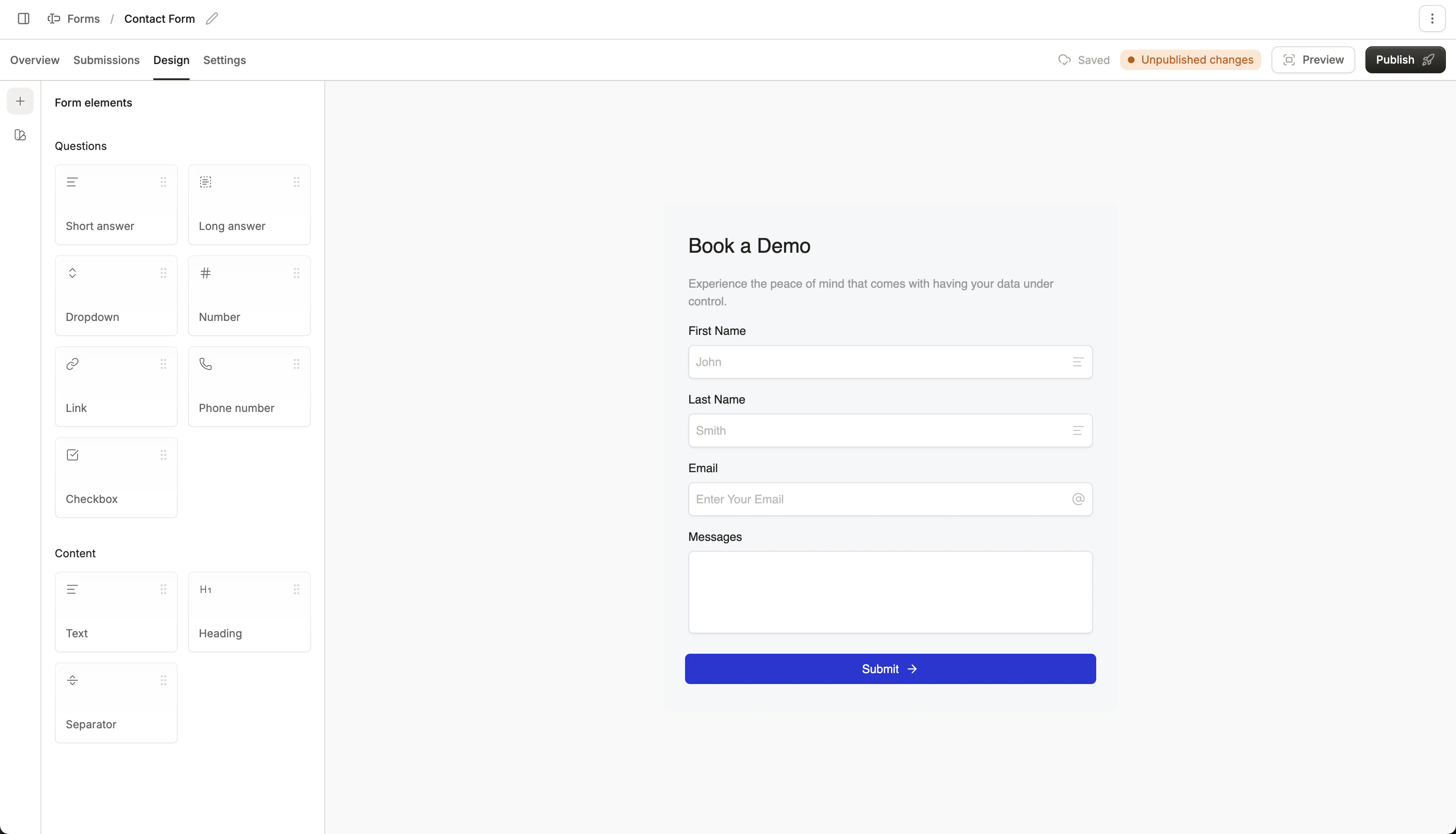
Forms builder
Form elements
On the left thin sidebar, you can access the form element library. Drag in useful elements like a “short answer” input field, checkbox, and text blocks to design your form! For each input element, you can configure settings such as text placeholders, input validation, and the link to field you wish to populate. You can also control when each input element is shown with the Visibility setting. For example, only show a field when other answers match certain conditions, or hide it when the answer is already known. Read more about conditional fields.Form theme
On the left thin sidebar, you can access the form theme to customize colors, fonts, and padding on your form.Email field
By default, the “Email” input is populated when you create a new Conversion form. This field cannot be removed, as email address is required for all forms.Previewing
You can always preview your design by clicking “Preview” in the top right. This renders the form as it would display on your website, and it will display validation errors properly.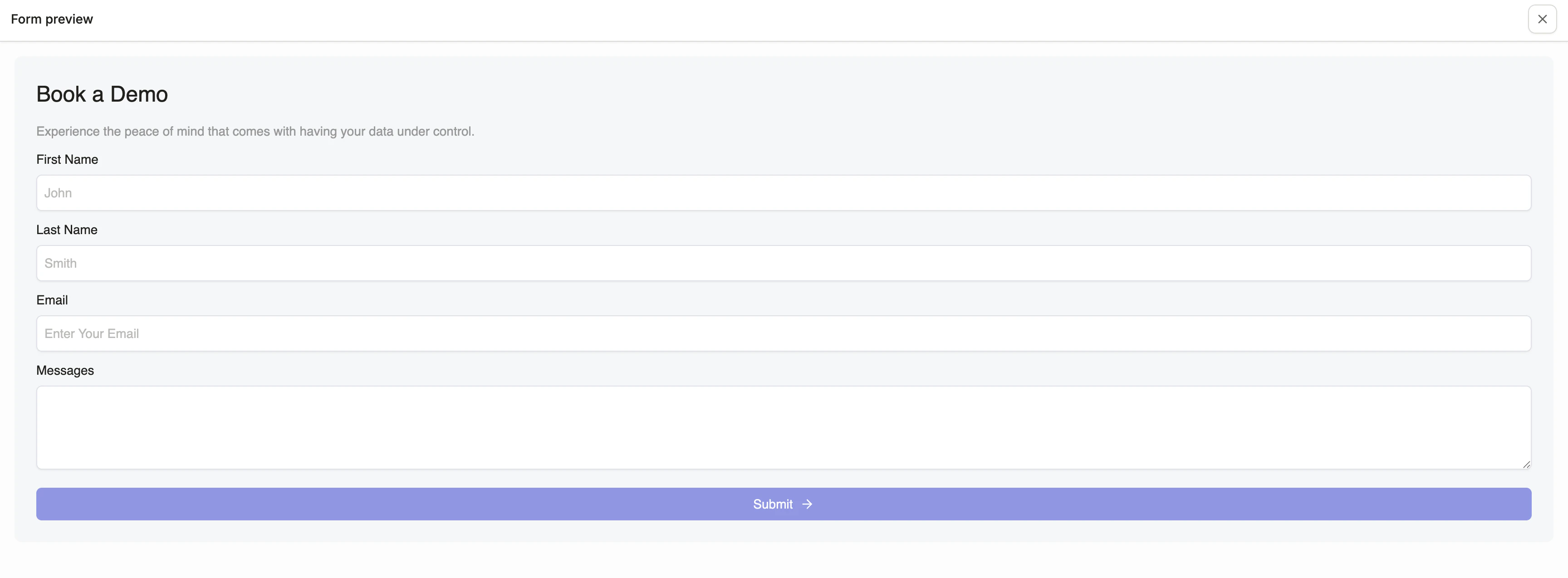
Form preview