

Compact view
The compact view is a sidebar that opens on the right side of the contacts list page when you click on a contact.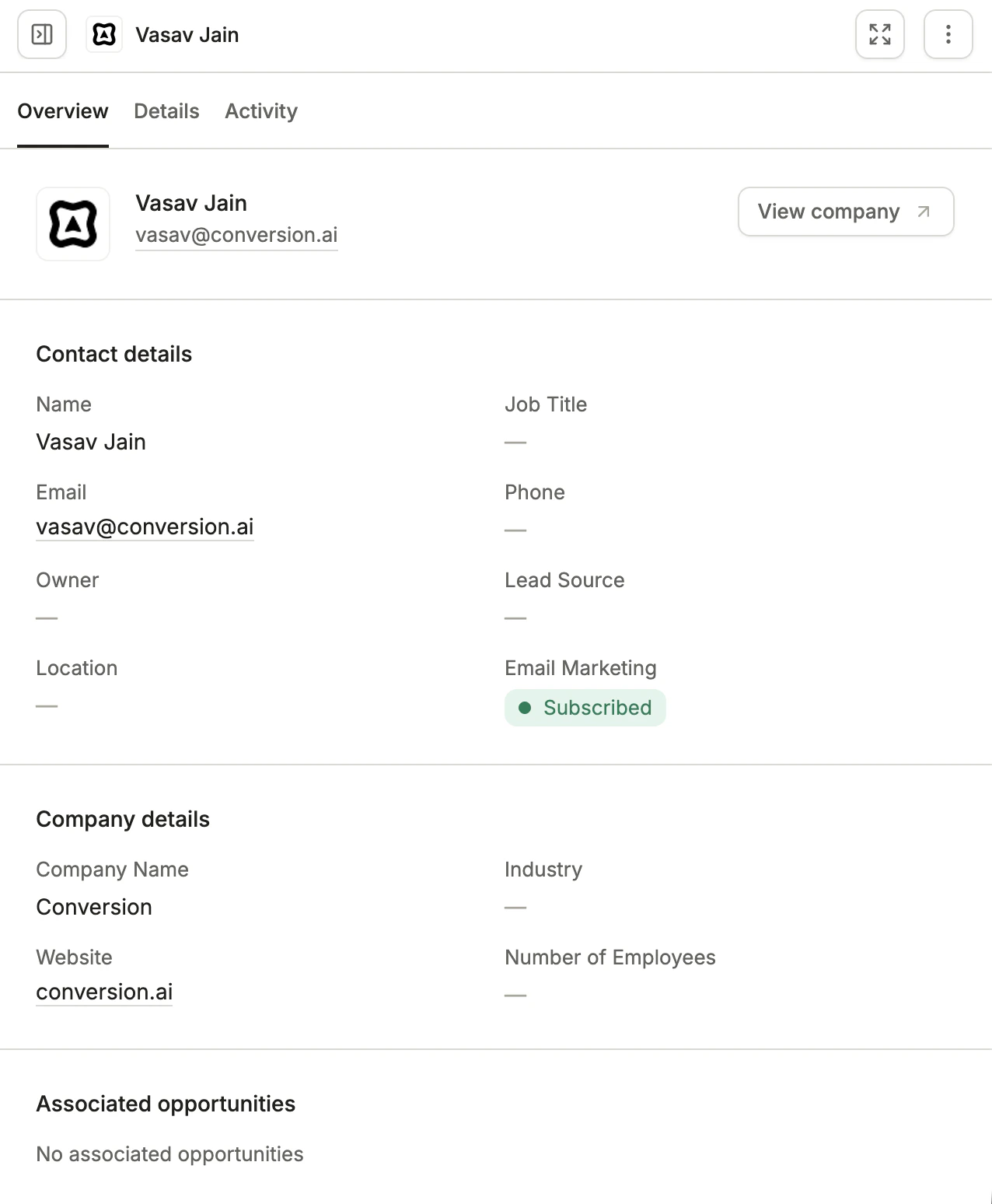
The Compact View Sidebar
- View company: Click this button to open the associated company record.
- Salesforce icon: Click this button to open the contact or lead record directly in Salesforce.
Overview tab
The Overview tab provides a summary of the contact’s field values, organized into the following sections: Contact details Displays the contact’s core profile information:- Name: First Name and Last Name concatenated
- Job Title
- Phone
- Owner
- Lead Source
- Location
- Email Marketing: Subscription status, shown as a badge. For e.g., “Subscribed”
- Company Name
- Industry
- Website
- Number of Employees
- Contact ID: The unique identifier for the contact in Conversion.
- System Source: How the contact was created (e.g., Salesforce, form submission).
- Created Date: When the contact record was created in Conversion.
- Last Updated Date: When the contact record was last modified.
- Salesforce ID: The corresponding record ID in Salesforce.
- Salesforce Object Type: Whether the Salesforce record is a Contact or Lead.
- Salesforce Created Date: When the record was created in Salesforce.
Details tab
The Details tab shows a complete breakdown of every field value on the contact, organized by field category. Unlike the Overview tab, which shows a curated summary, the Details tab displays all fields. You can:- Search fields: Use the search bar at the top to find a specific field by name.
- Toggle empty fields: Click Show empty fields to display fields that have no value
Activity tab
The Activity tab shows a chronological log of all actions and events associated with the contact. For a full breakdown of the activity tab and all engagement types, see Activity.Full-screen view
Click the expand button (double-arrow icon) in the top-right corner of the compact sidebar to open the contact in full-screen view.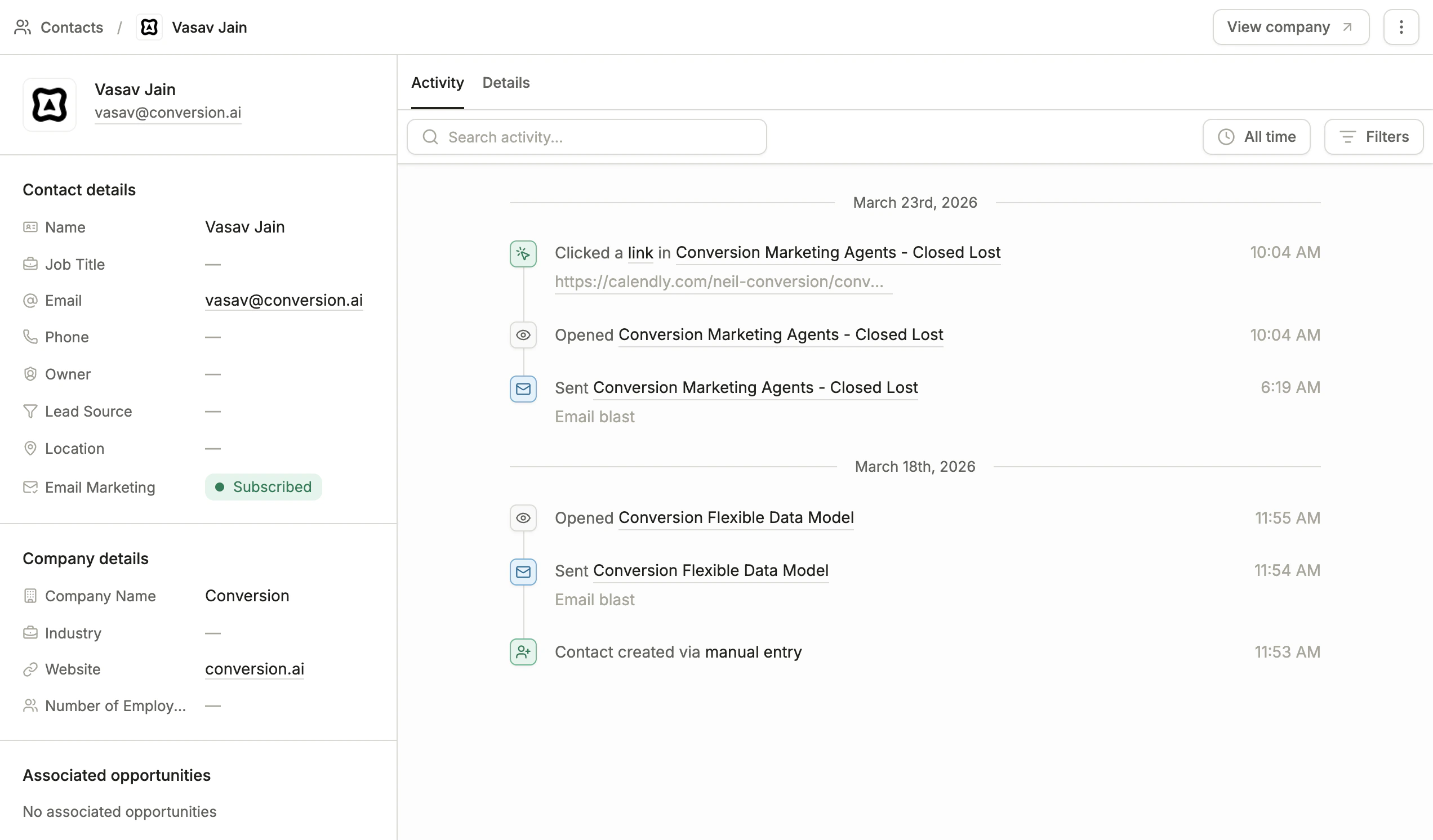
The Full-screen View