

How tracking works
- Conversion discovers the form. When the Forms SDK script is on the page, Conversion records each submission from a form it doesn’t know yet. The form starts out untracked.
- You track it. You pick one of its submissions and confirm. The form joins your Forms list.
- New submissions count. From then on, each submission is matched to a contact and recorded on the form, like any other form.
Which forms can be tracked
These external forms must be JavaScript forms (<form>), use input fields (<input>), and call the submit event.
The form is identified via the id, falling back to name if it doesn’t exist. The field names that appear in the tracked form submissions are the names of the <input> elements.
If an email address is not passed through a form, it will not be mapped to or create a contact.
Set up a tracked form
Before you begin- Permission to create forms in your workspace.
- Access to add a script to the pages where the form appears.
- The Conversion tracking script on those pages, so submissions are linked to tracked visitors.
1
Add the Forms SDK script
Add the script to every page where the form appears:
2
Open the tracking dialog
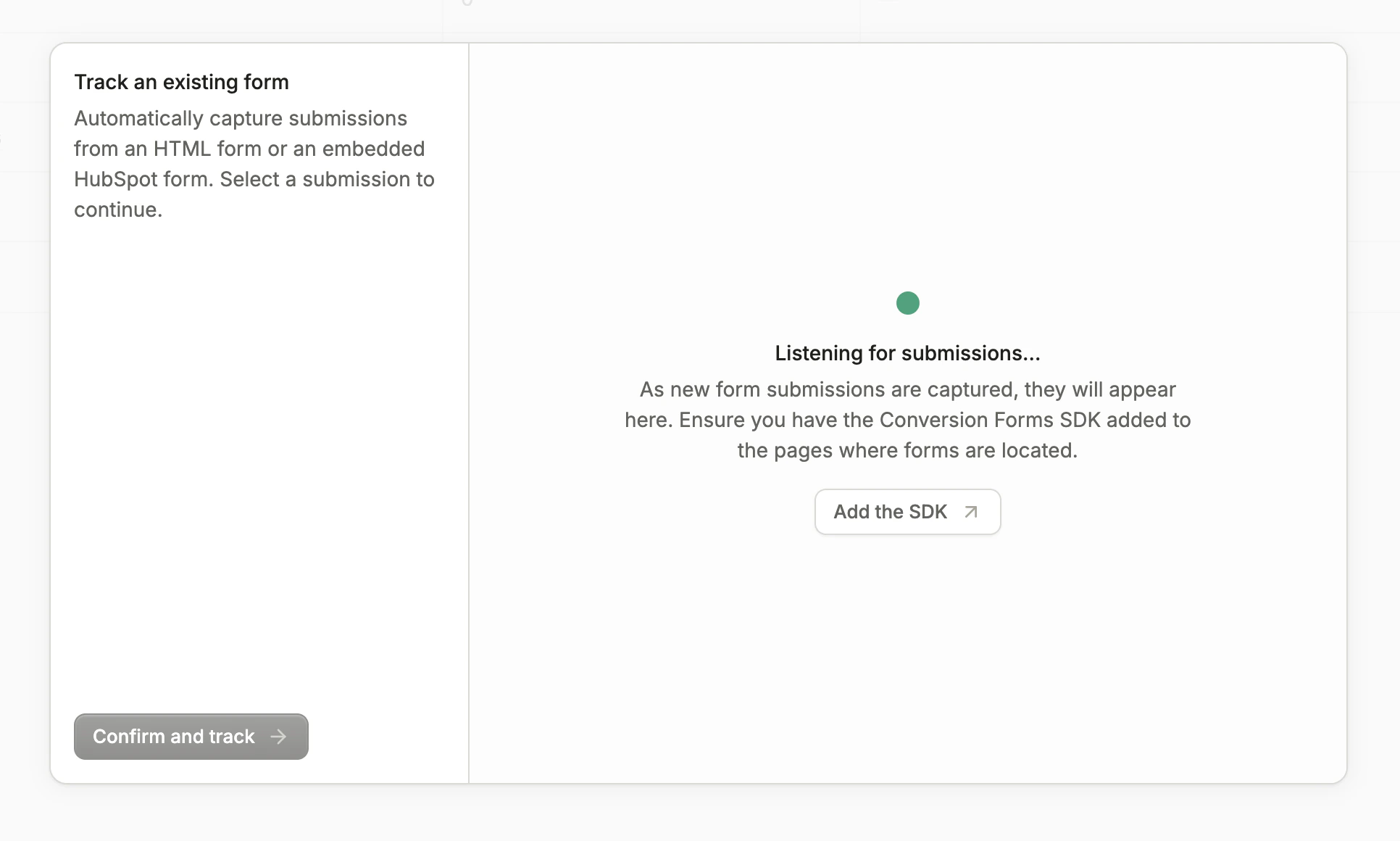
On the Forms page, click New → Track an existing form. The dialog shows Listening for submissions….
3
Submit the form on your website
With the dialog open, submit the form on your website using a test email address. The submission appears in the dialog with its page URL and field values.The dialog only lists submissions received after you opened it. Click Clear submissions to start listening again.
4
Select the submission
Click Select on the submission from the form you want to track.
5
Choose a location
Under Location, choose the folder the form goes in.
6
Track the form
Click Confirm and track. The form opens.
7
Submit the form again
Submit the form on your website once more. The form’s settings list the inputs from submissions received after you tracked it, so they’re empty until this one arrives.
8
Map the email field
Open the form’s Settings. Under Email field, select the input that holds the contact’s email address. Conversion uses it to match each submission to a contact.
9
Map other fields
Under Additional fields, map other inputs to contact or company fields.
Managing a tracked form
A tracked form has Overview, Submissions, and Settings tabs. It has no Design tab and nothing to publish, because the form itself stays on your website. Its Settings page has two sections:- Contacts: Create new contacts for new email addresses, Automatically subscribe contacts, and Sync contacts. They start from your defaults for new forms.
- Fields: the Email field and Additional fields mappings.
Troubleshooting
Why is the Email field list empty?
Why is the Email field list empty?
The list shows inputs from submissions received after you tracked the form. Submit the form on your website, then reload the form’s Settings.
Why doesn't my form appear in the tracking dialog?
Why doesn't my form appear in the tracking dialog?
Confirm the Forms SDK script loads on the page, then submit the form again while the dialog is open. The dialog doesn’t show submissions from before you opened it.If your site has a Content Security Policy, it must allow the Forms SDK to send submissions. See Content Security Policy.
Why are two external forms on different pages being routed to one Conversion form?
Why are two external forms on different pages being routed to one Conversion form?
Conversion identifies external forms via the HTML form element
id, falling back to name if it doesn’t exist. Thus, if a form with the same id exists on two different pages, their submissions will be routed to one Conversion form.Why aren't submissions creating contacts?
Why aren't submissions creating contacts?
Check that the form’s Email field is mapped in Settings. Submissions received before the email field was mapped, or before you tracked the form, don’t create contacts.