

Compact view
The compact view is a sidebar that opens on the right side of the companies list page when you click on a company.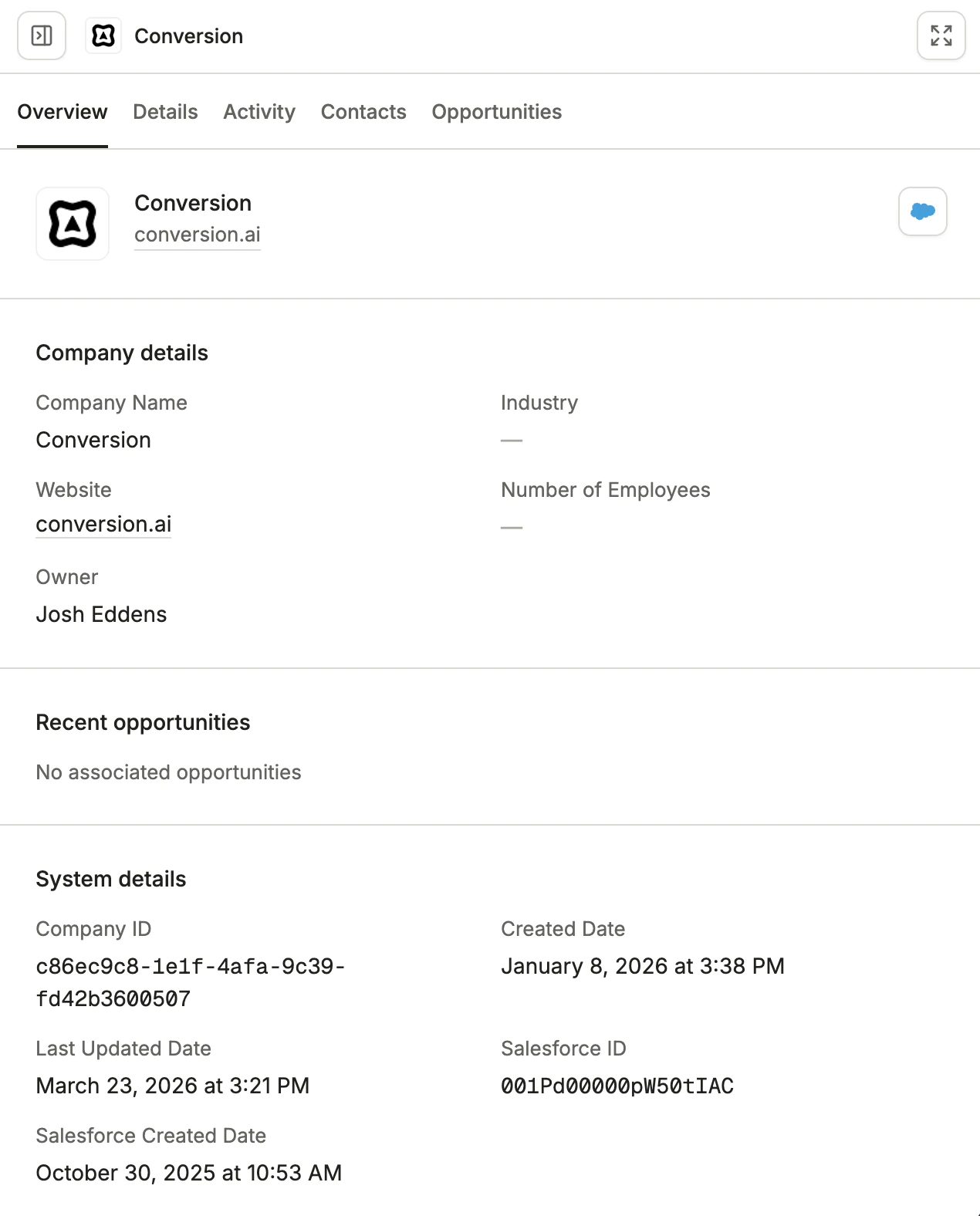
The Company Compact View
Header
The top of the sidebar displays the company’s key identifying information:- Company name
- Company logo
- Website
Overview tab
The Overview tab provides a summary of the company’s field values and related records, organized into the following sections: Company details Displays the company’s core profile information:- Company Name
- Industry
- Website
- Number of Employees
- Owner
- Opportunity name with a View link to open the full opportunity record
- Stage (e.g., “Discovery / Qualification”)
- Amount
- Close date
- Probability
- Company ID: The unique identifier for the company in Conversion.
- Created Date: When the company record was created in Conversion.
- Last Updated Date: When the company record was last modified.
- Salesforce ID: The corresponding account record ID in Salesforce.
- Salesforce Created Date: When the account was created in Salesforce.
Details tab
The Details tab shows a complete breakdown of every field value on the company, organized by field category. The fields are organized into the following categories:Activity tab
The Activity tab shows a chronological log of all activity associated with the company. This is an aggregate view that combines the activity of every contact that belongs to this company into a single timeline. Each activity entry shows the contact name alongside the action taken. For example:- “Vasav Jain entered Mark Subscribed - Meeting Engaged”
- “Vasav Jain exited Mark Subscribed - Meeting Engaged”
- Search through activity entries using the search bar at the top.
- Filter by time range using preset ranges (Today, Yesterday, This week, Last week, Last 7 days, Last 30 days, This month, Last month, Last 3 months, Last 6 months) or a custom date range with specific From and To times. Click Apply to filter, or Clear to reset.
- Filter by activity type to narrow the log to specific categories: Emails, Form submissions, Page visits, Workflows, or Custom events.
Contacts tab
The Contacts tab lists all contacts that belong to this company. Each row shows:- Contact: The contact’s name and an indicator of their subscription status.
- Company: The company the contact is associated with.
- Last updated: When the contact record was last modified.
Opportunities tab
The Opportunities tab lists all opportunities associated with this company. Each row shows:- Opportunity: The name of the opportunity.
- Created at: When the opportunity was created, sorted by most recent first by default.
Full-screen view
Click the expand button (double-arrow icon) in the top-right corner of the compact sidebar to open the company in full-screen view.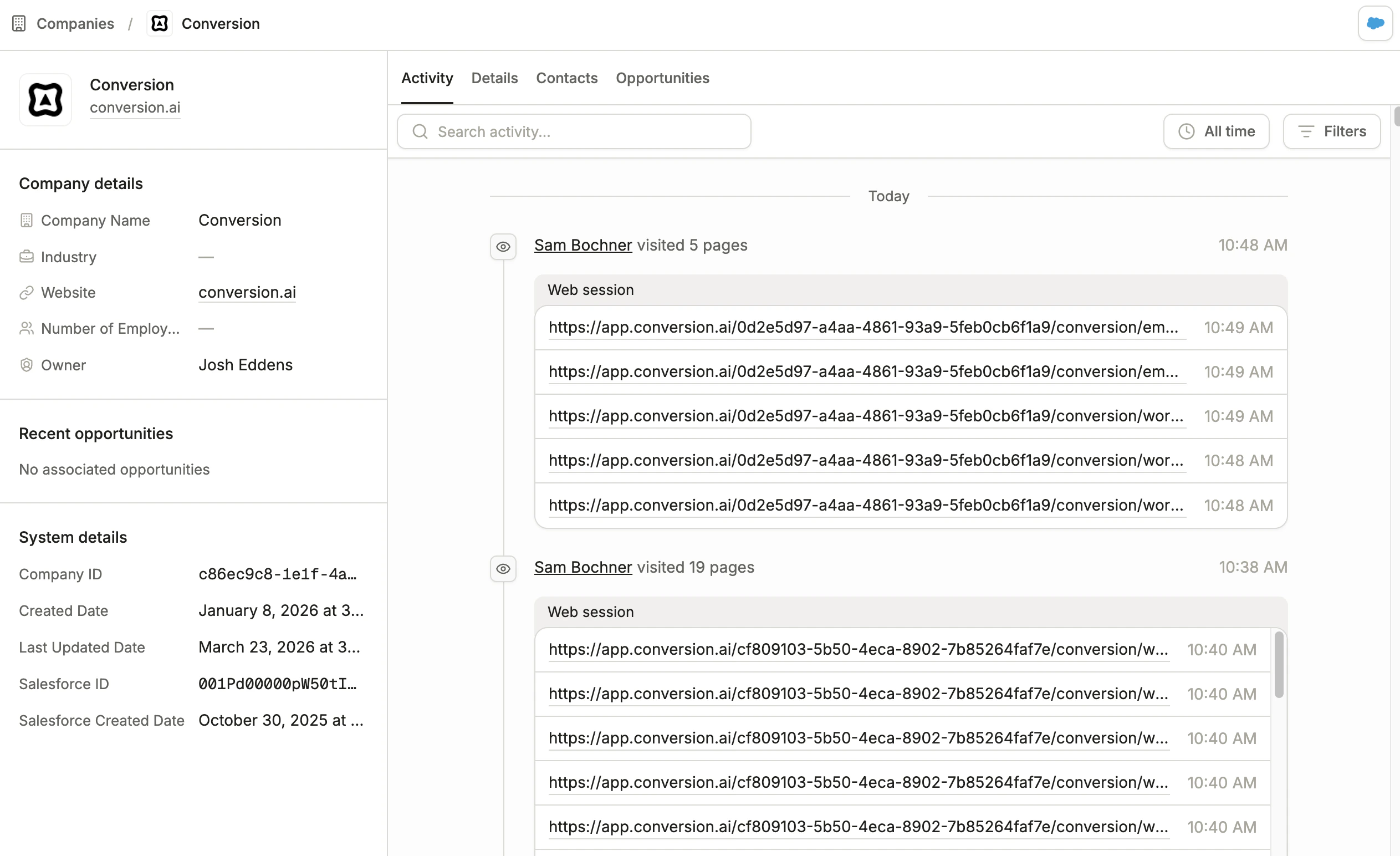
The Company Full-screen View