

We recommend a dedicated integration user. See Integration User Setup.
Set up with an admin user
Setup takes about 5 to 10 minutes.Prerequisites
Before you begin, make sure you have:- Salesforce Edition: Enterprise, Unlimited, or Developer Edition (Professional Edition requires an API access add-on)
- Salesforce Permissions: System Administrator access
- Conversion Account: Admin access to your Conversion workspace
Step 1: Update the admin user
1
Update the admin user's role in Salesforce
- Navigate to Setup → Users → Users
- Click on the admin user you’ll be integrating with
-
Check the Marketing User box (to enable Campaign syncing)
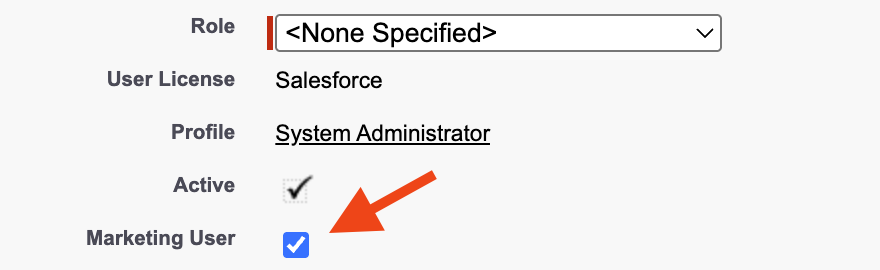
- Click Save
Step 2: Install the Salesforce package
Conversion uses a managed package to enable secure communication with your Salesforce organization. This package must be installed before you can connect.The person installing the package needs the Download AppExchange Packages permission in Salesforce. This is typically a system administrator, not a dedicated integration user.
1
Start the installation
Click the link below to open the Salesforce package installer:You’ll see a page asking which users should have access to the package: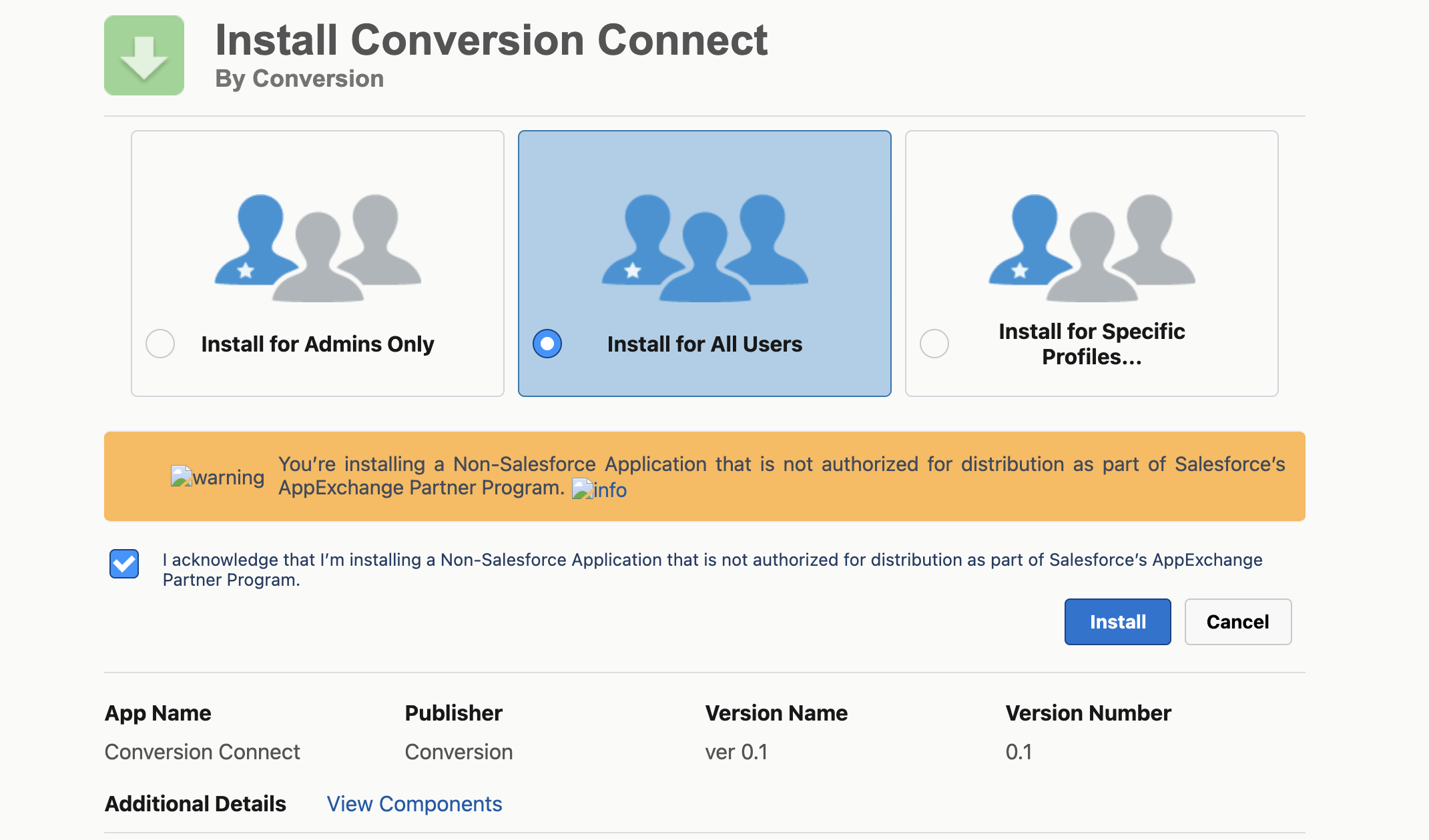
Install Production Package
Opens the package installation page for a production Salesforce instance
Install Sandbox Package
Opens the package installation page for a sandbox Salesforce instance
2
Complete the installation
- Select Install for All Users
- Check the box to acknowledge the third-party access agreement
- Click Install
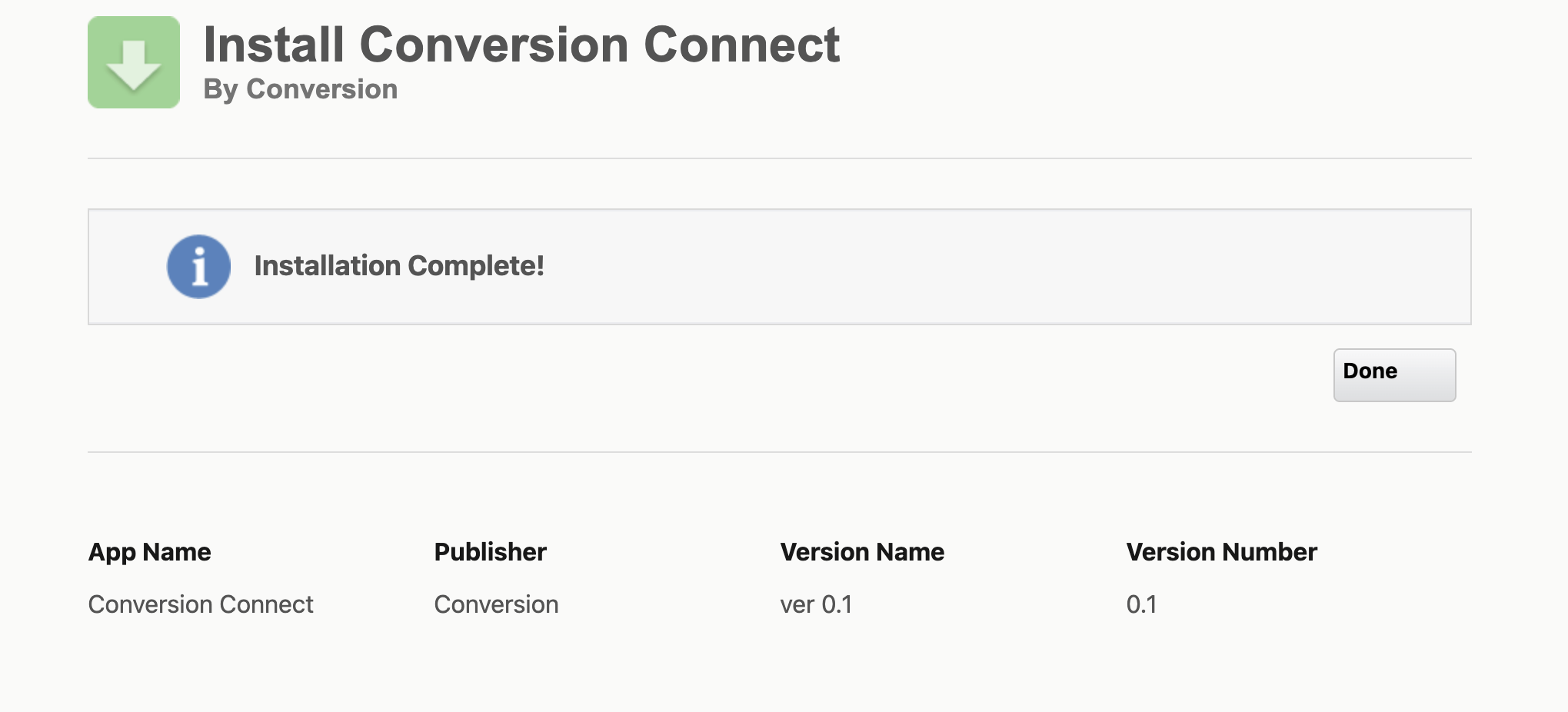
Step 3: Connect Conversion to Salesforce
1
Start the connection
- Log in to your Conversion workspace.
- Go to Settings → CRM and syncing.
- If you are connecting to a Salesforce sandbox instance, turn on Use sandbox in the CRM section.
- Click Connect.
2
Authorize with Salesforce
A Salesforce login window will appear.
3
Monitor the initial sync
The initial sync imports all your existing records and can take a few minutes to several hours, depending on your data volume. You can monitor progress in Settings → CRM and syncing.